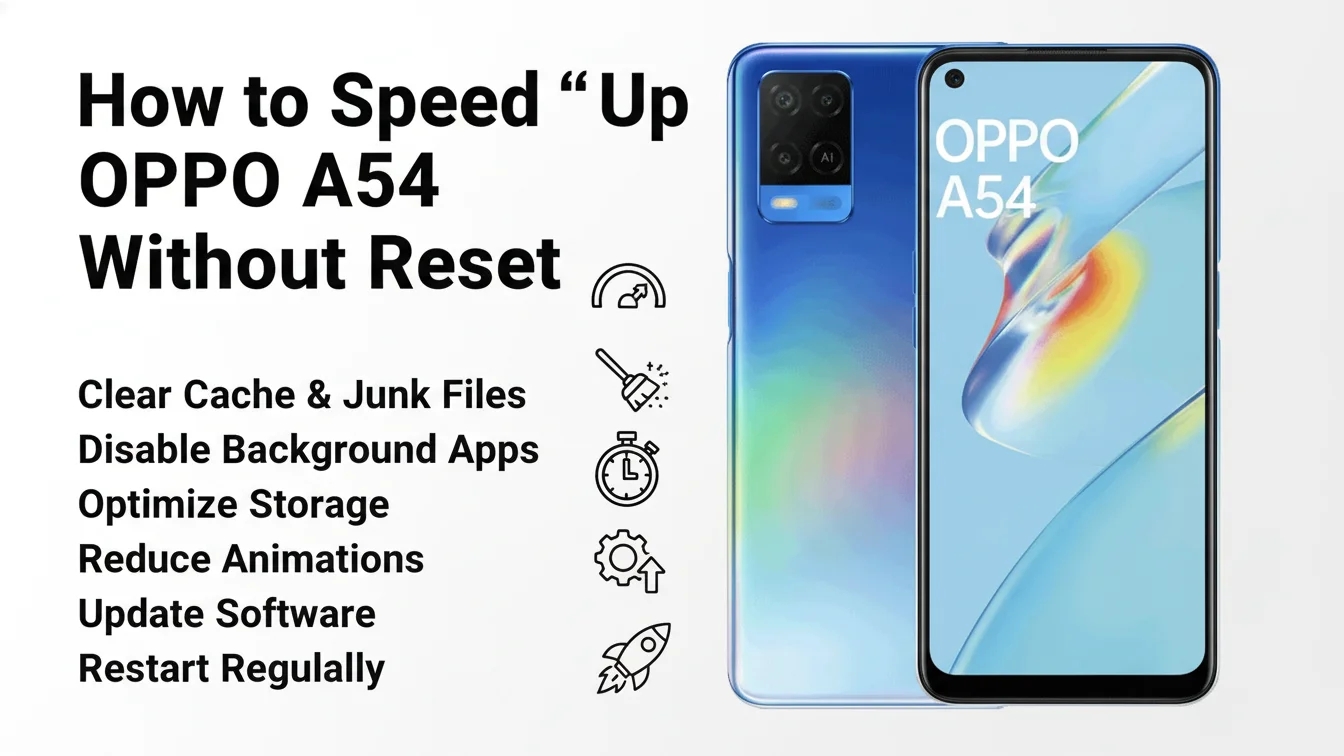
You people, have apps running behind your Oppo A54 mobile phone right now, due to which the mobile phone runs slowly or the mobile phone apps do not open. In today’s article, we will see in full detail how you people can optimize the speed of your slow mobile Without Reset the mobile. I will tell you everything in a simple method below, follow it step by step.
Close Background Apps (Free RAM)
OPPO A54 has limited RAM, so too many background apps slow down performance.
How to do it:
Open Recent Apps
Tap Clear All
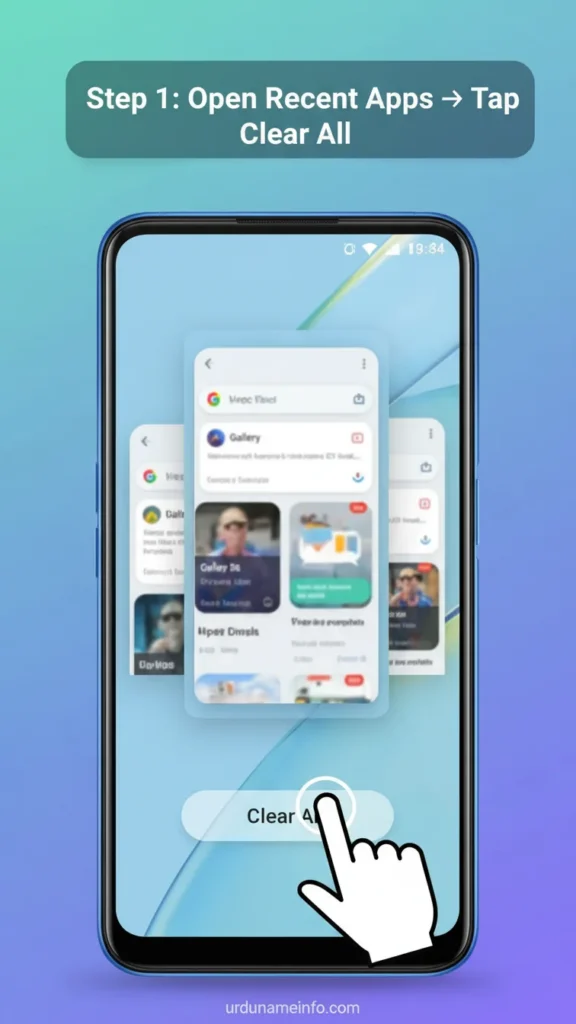
This method makes a significant difference in the RAM storage of your mobile phone, giving you an instant boost and increasing the speed.
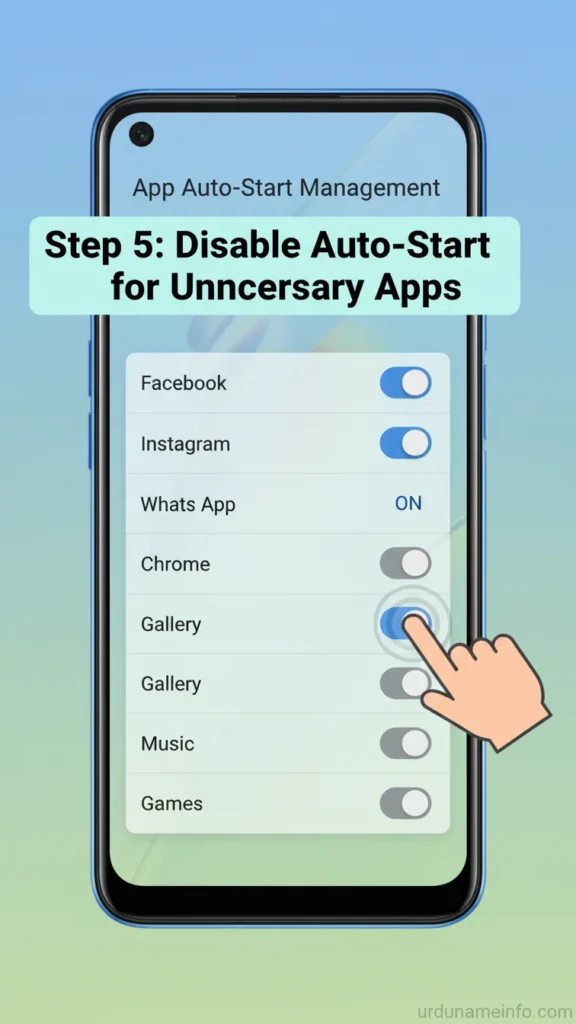
Disable Auto-Start Apps
Some apps run automatically when the phone turns on, slowing down the device.
How to do it:
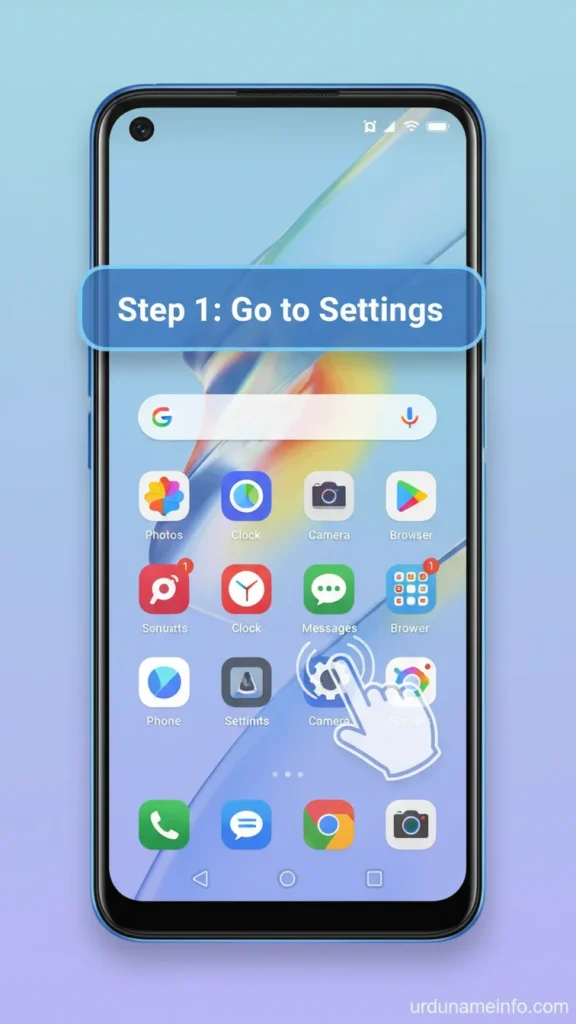
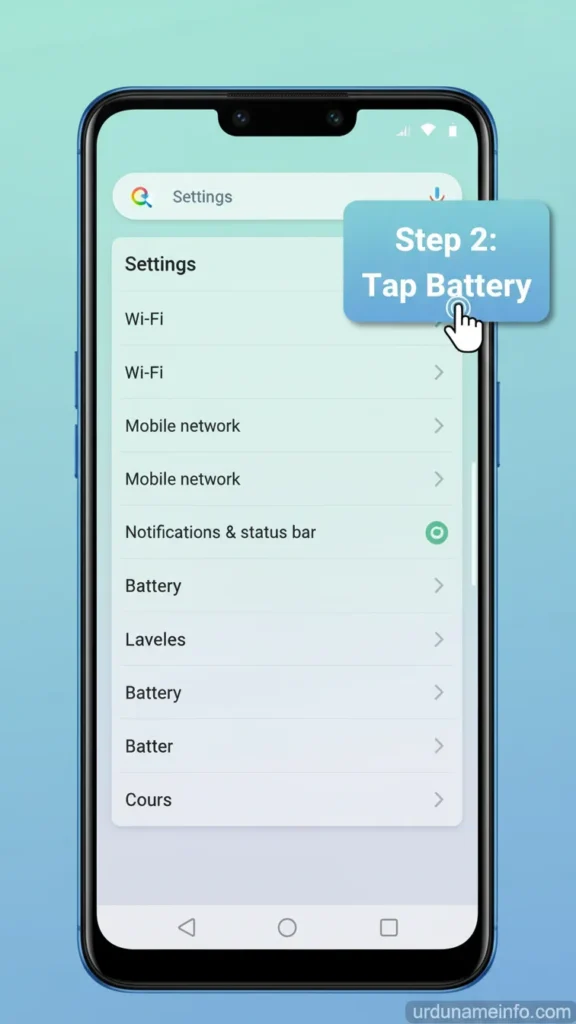
Go to Settings
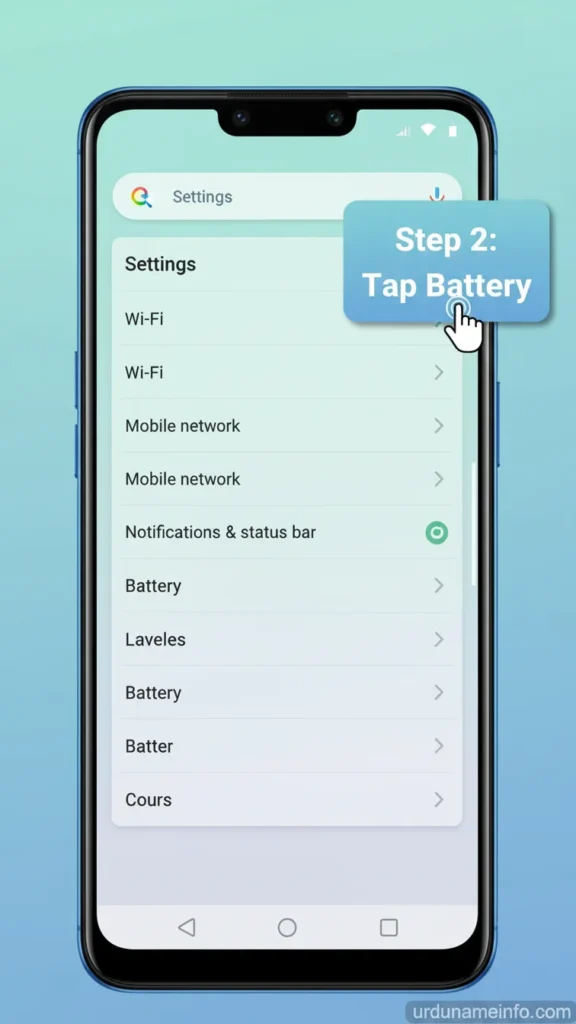
Tap Battery
Open More Battery Settings
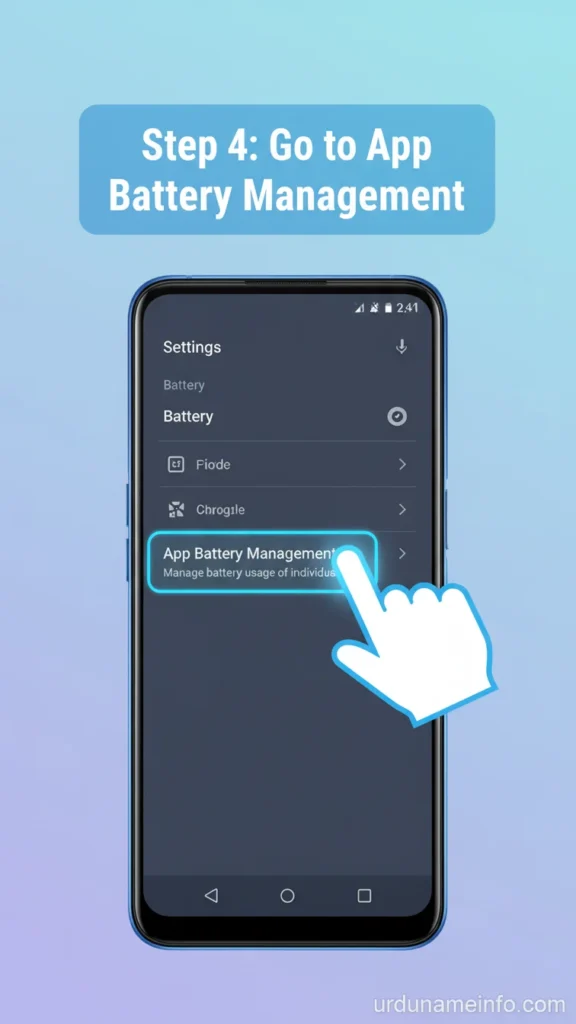
Go to App Battery Management
- Disable Auto-Start for unnecessary apps
Reduce Animations (Make Phone Feel Faster)
Disabling or reducing animation scale improves speed significantly.
How to do it:
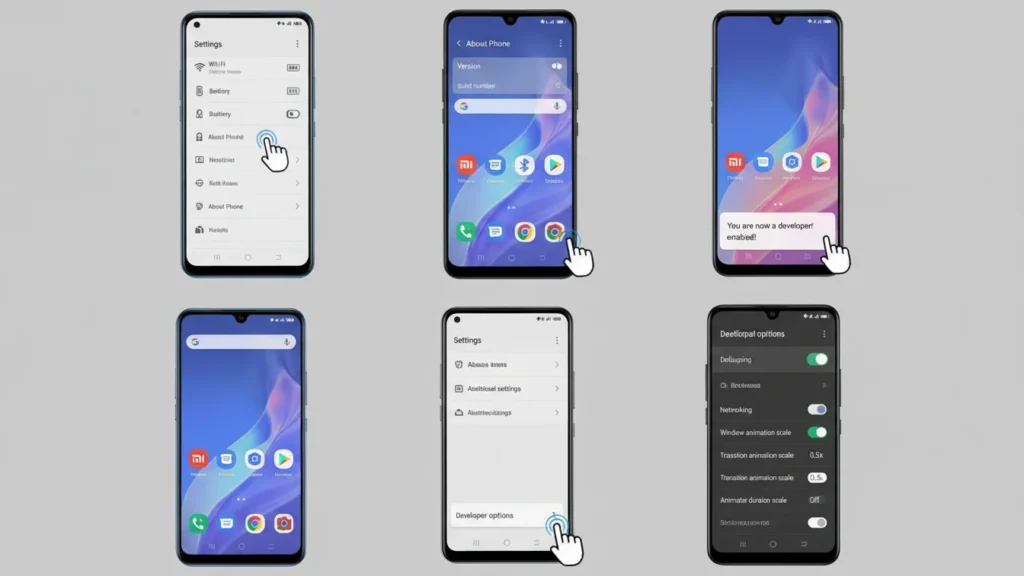
- Go to Settings → About Phone
- Tap Version 7 times to enable Developer Mode
- Go back → Additional Settings
- Open Developer Options
- Set all animation scales to 0.5x or Off
Read More: How to Enable Developer Options in OPPO A54
Clear App Cache (Safe & Effective)
App cache grows over time and causes lag.
How to do it:
- Go to Settings → Apps
- Tap App Management
- Select any app
- Tap Storage Usage
- Tap Clear Cache
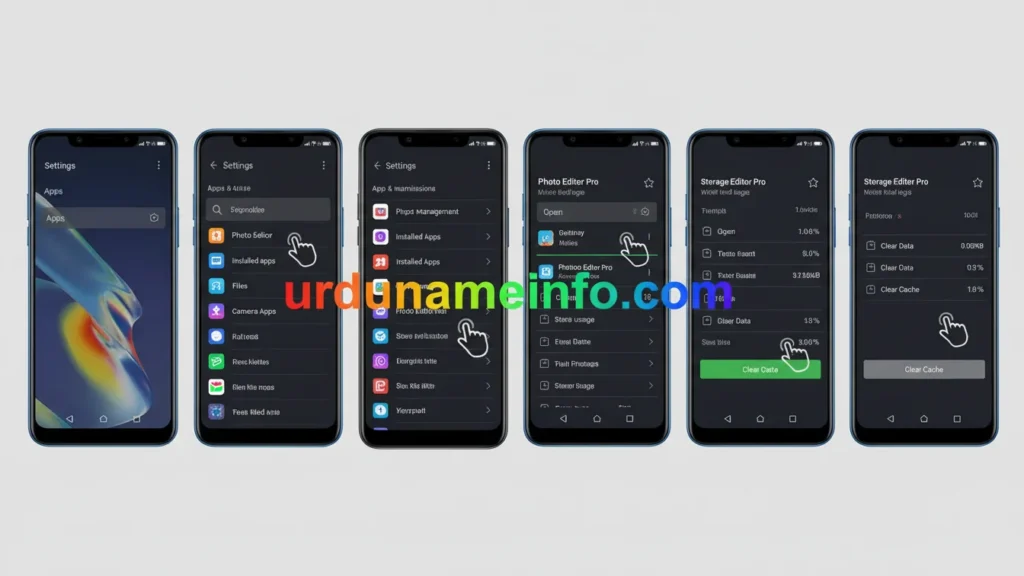
Read More: How to Clear Cache on OPPO A54 (Complete Easy Guide)
Disable Unused System Apps (Bloatware)
How to do it:
- Open Settings → Apps → App Management
- Select unused apps
- Tap Disable
Keep Storage 20–30% Free
Low storage = lag + slow loading + crashes.
How to do it:
Delete:
- Large videos
- Duplicate photos
- WhatsApp media
- Unused downloads
Or move files to SD card.
Turn Off Power Saving Modes
Battery saving reduces CPU performance.
How to do it:
- Go to Settings → Battery
- Turn OFF Power Saving Mode
- Turn OFF Super Power Saving Mode
Related Blog Post
Author

netpub60@gmail.com
Related Posts
How to Check Laptop RAM Type in Windows (DDR3, DDR4, DDR5)
If you are planning to upgrade your laptop’s memory, the first thing you need to know is your RAM type. Buying the...
Read out all
How to Fix Laptop Screen Flickering in Windows
Laptop screen flickering is a common issue in Windows 10 and Windows 11. The screen may blink, flash, or refresh continuously, making...
Read out all
How to Check Internet Speed on Laptop Without App
If your internet feels slow while browsing, streaming, or downloading files, the first thing you should do is check your internet speed....
Read out all
Common Laptop Mistakes That Reduce Performance
Many people think a slow laptop means old hardware or the need for a new device. In reality, laptops often slow down...
Read out all
How to Fix USB Device Not Recognized Error
Seeing the message “USB Device Not Recognized” can be annoying, especially when you urgently need to access a flash drive, keyboard, mouse,...
Read out all
Difference Between SSD and HDD for Beginners
If you are new to computers, terms like SSD and HDD can sound confusing. Many people hear that SSD is “faster” and...
Read out all