Laptop screen flickering is a common issue in Windows 10 and Windows 11. The screen may blink, flash, or refresh continuously, making it difficult to work. Display drivers, refresh rate settings, loose connections, or software conflicts can cause this problem.
The good news is that most screen flickering problems are software-related and can be fixed without replacing your laptop screen.
Let’s go through the solutions step by step.
Check If the Problem Is Software or Hardware
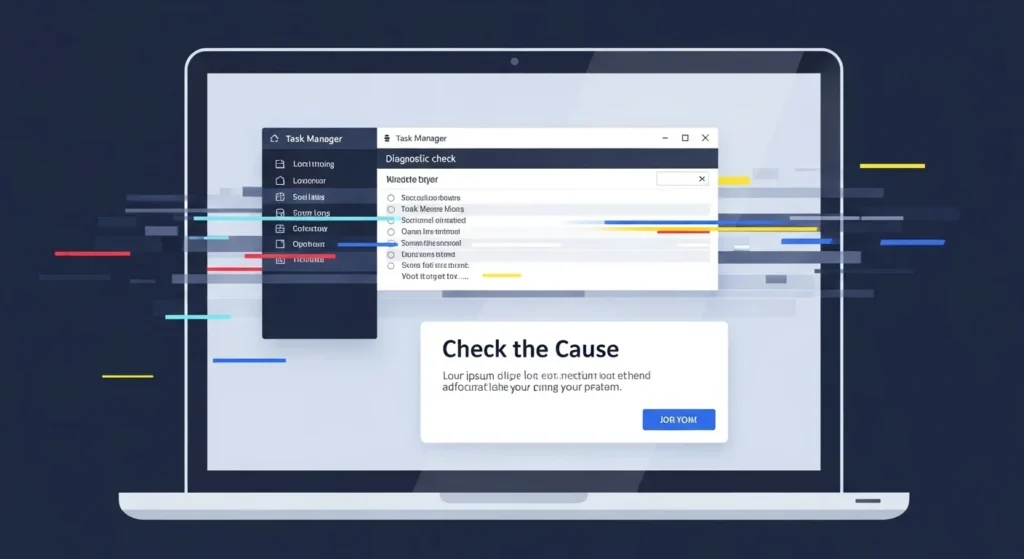
Before changing any settings, it’s important to understand the cause. Open Task Manager on your laptop. If Task Manager also flickers, the issue is likely related to display drivers. If Task Manager stays stable while the rest of the screen flickers, a specific app might be causing the problem.
This quick check helps you avoid unnecessary troubleshooting.
Update or Reinstall Display Drivers
Outdated or corrupted display drivers are the most common reason for screen flickering. Updating the graphics driver often solves the issue instantly.
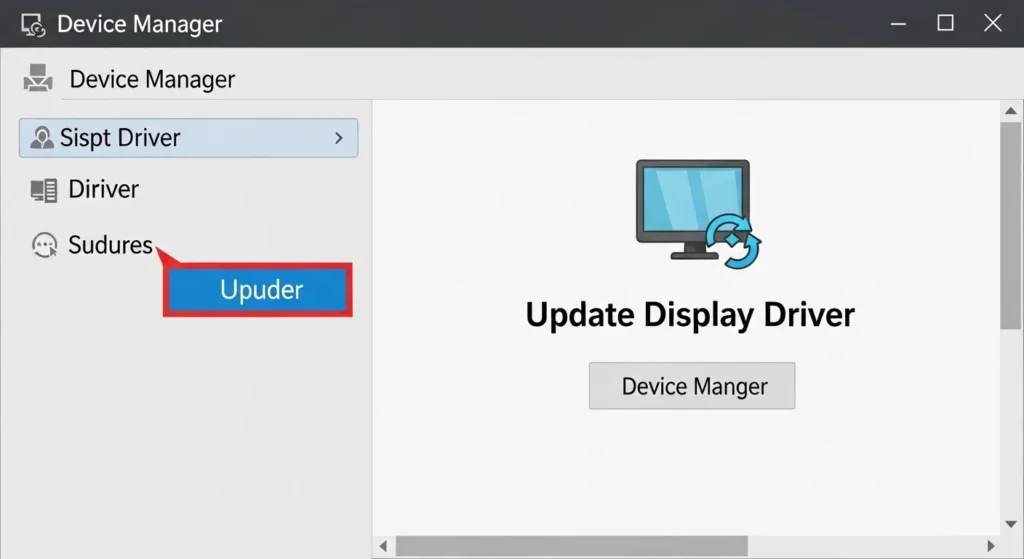
Open Device Manager, find Display Adapters, and update the driver. If updating doesn’t work, uninstall the driver and restart your laptop. Windows will automatically reinstall the correct version.
This method is safe and recommended.
Change Screen Refresh Rate
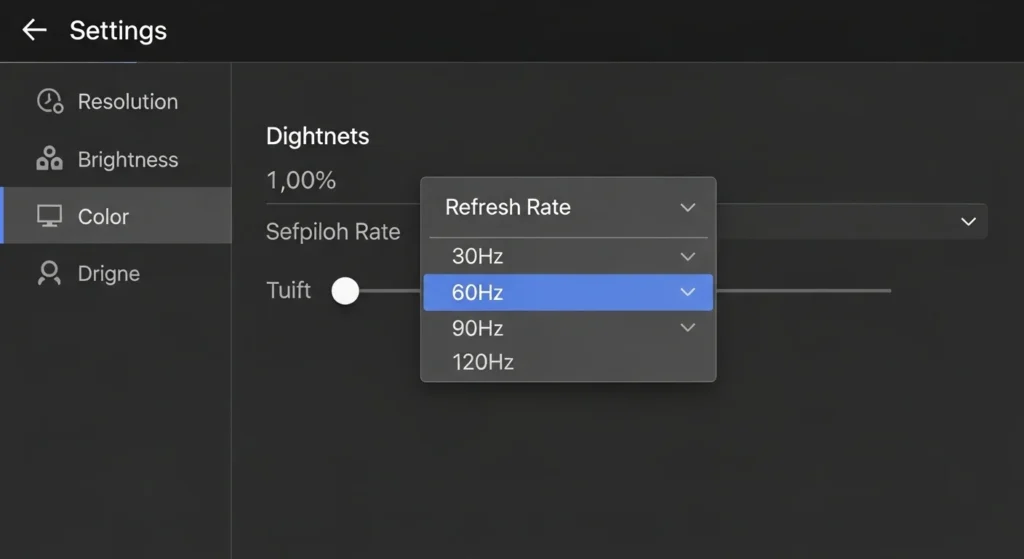
Sometimes the screen refresh rate is set incorrectly, especially after a Windows update. Setting the correct refresh rate can stop flickering.
Go to Display Settings and choose the recommended refresh rate for your screen.
Older laptops usually work best at 60Hz.
Read More: How to Check Internet Speed on Laptop Without App
Disable Problematic Applications
Certain apps, especially older programs or antivirus software, may conflict with Windows display settings and cause flickering.
If the flickering started after installing a new app, try uninstalling it. Restart your laptop and check if the issue is resolved.
Turn Off Windows Visual Effects
Heavy animations and visual effects can cause instability on older laptops. Reducing visual effects can improve performance and eliminate flickering.
Switching to basic visual settings makes the system more stable and responsive.
Check for Windows Updates
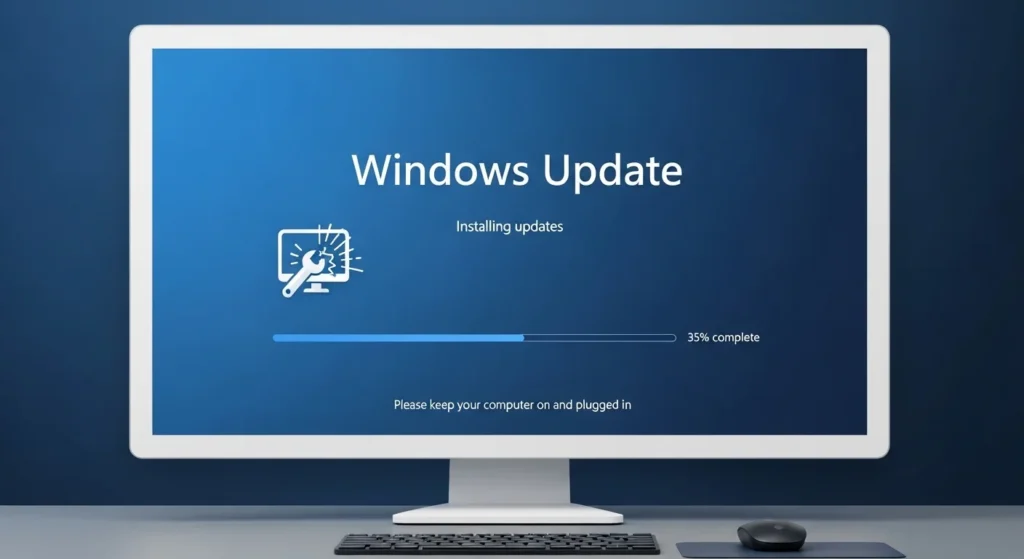
Microsoft often releases updates that fix display-related bugs. If your laptop started flickering after an update, installing the latest patch may resolve it.
Keeping Windows up to date ensures better compatibility and system stability.
When It Might Be a Hardware Issue
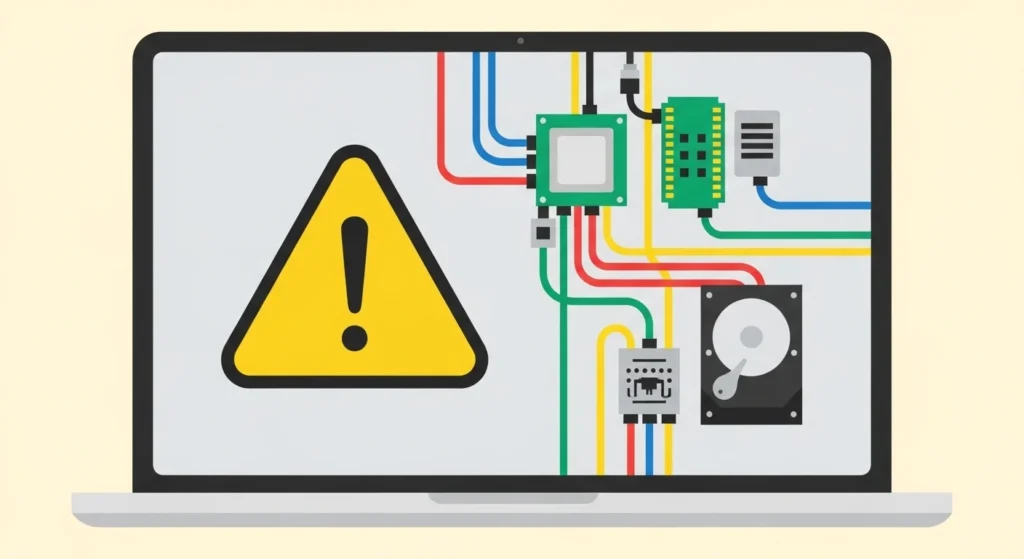
If none of the above methods work and the flickering continues even outside Windows (like in BIOS), the problem may be hardware-related. It could be a loose display cable or a damaged screen panel.
In that case, professional repair may be necessary.
Conclusion
Laptop screen flickering in Windows is usually caused by driver issues, refresh rate settings, or software conflicts. In most cases, updating drivers or adjusting display settings solves the problem quickly. Before considering expensive repairs, try these safe and simple solutions. They work for the majority of users.
Author

netpub60@gmail.com
Related Posts
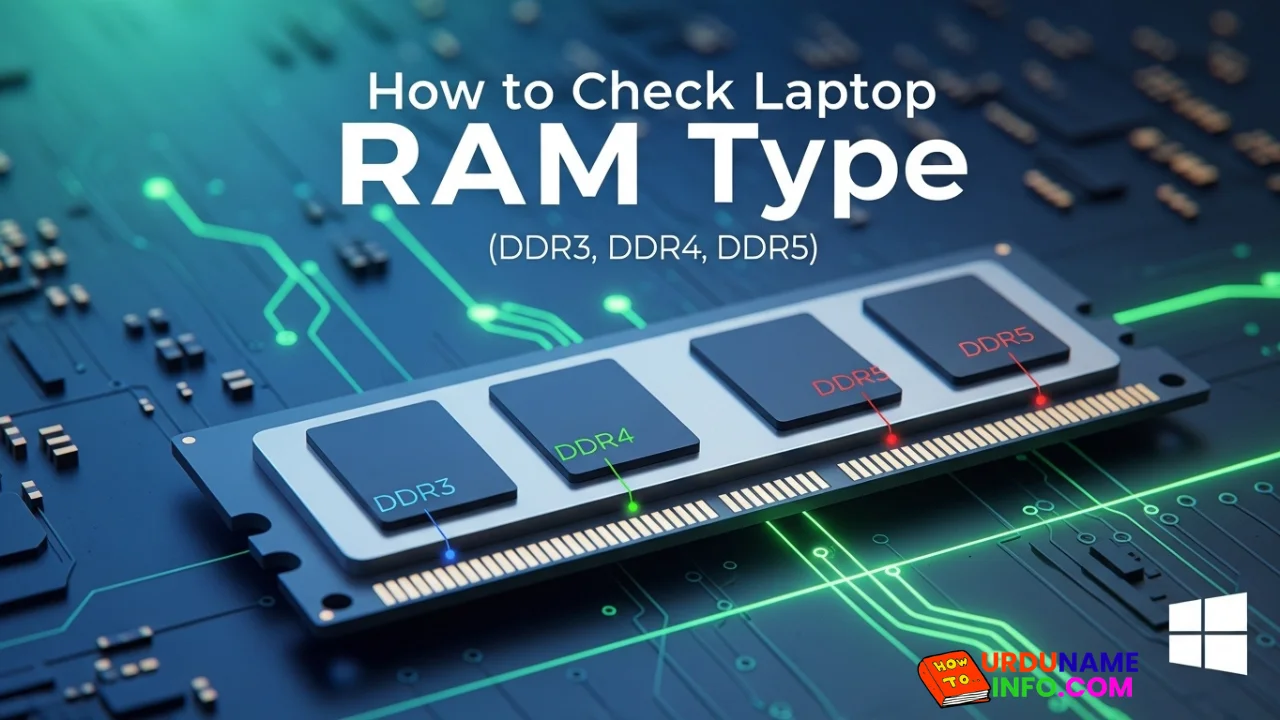
How to Check Laptop RAM Type in Windows (DDR3, DDR4, DDR5)
If you are planning to upgrade your laptop’s memory, the first thing you need to know is your RAM type. Buying the...
Read out all
How to Check Internet Speed on Laptop Without App
If your internet feels slow while browsing, streaming, or downloading files, the first thing you should do is check your internet speed....
Read out all
Common Laptop Mistakes That Reduce Performance
Many people think a slow laptop means old hardware or the need for a new device. In reality, laptops often slow down...
Read out all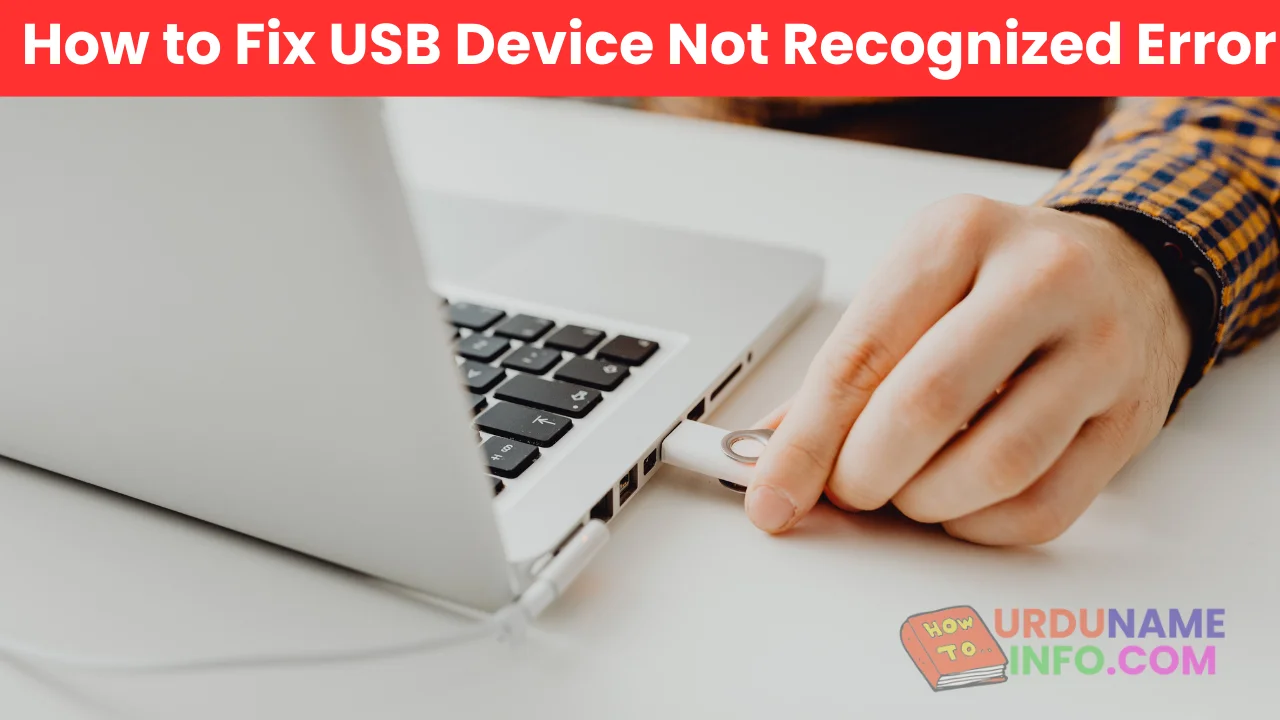
How to Fix USB Device Not Recognized Error
Seeing the message “USB Device Not Recognized” can be annoying, especially when you urgently need to access a flash drive, keyboard, mouse,...
Read out all
Difference Between SSD and HDD for Beginners
If you are new to computers, terms like SSD and HDD can sound confusing. Many people hear that SSD is “faster” and...
Read out all
Why Laptop Is Slow After Windows Update
Many users notice that their laptop becomes slow right after installing a Windows update. Apps take longer to open, startup feels delayed,...
Read out all