Laptop battery performance slowly decreases over time. If your laptop doesn’t last as long as it used to or shuts down unexpectedly, checking battery health is the smartest first step.
The good news is that Windows already provides built-in tools to check battery health accurately, no third-party software required. Whether you’re using Windows 10 or Windows 11, the methods below work perfectly.
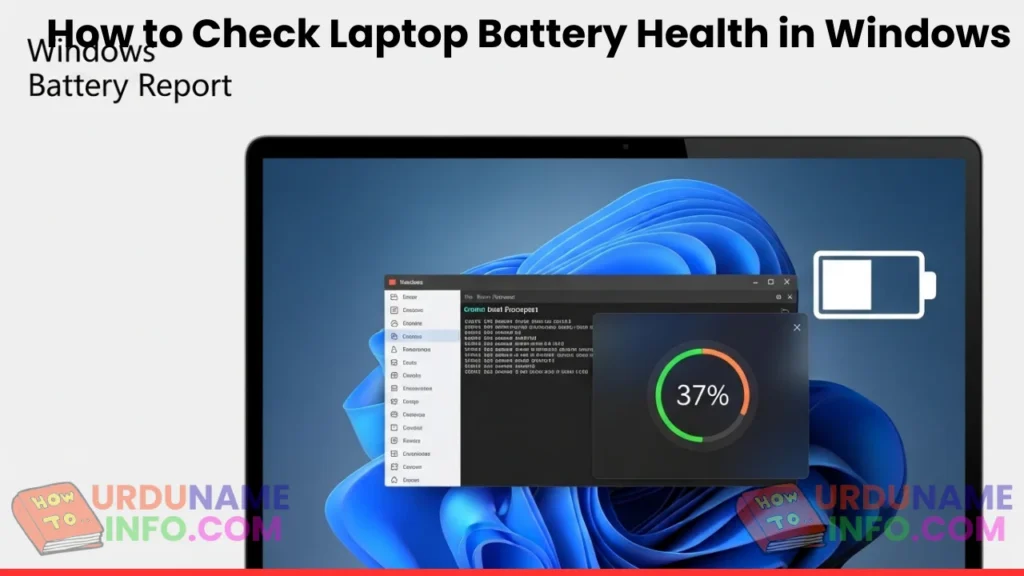
Use Windows Battery Report (Most Accurate Method)
Windows includes a hidden but powerful battery report feature. It shows your battery’s original capacity, current capacity, usage history, and overall health.
You simply generate a report once, and Windows creates a detailed file you can open in your browser. This method is safe, official, and recommended.
After checking the report, you’ll clearly understand whether your battery is healthy, aging, or needs replacement.
Check Battery Health Using Settings (Quick Overview)
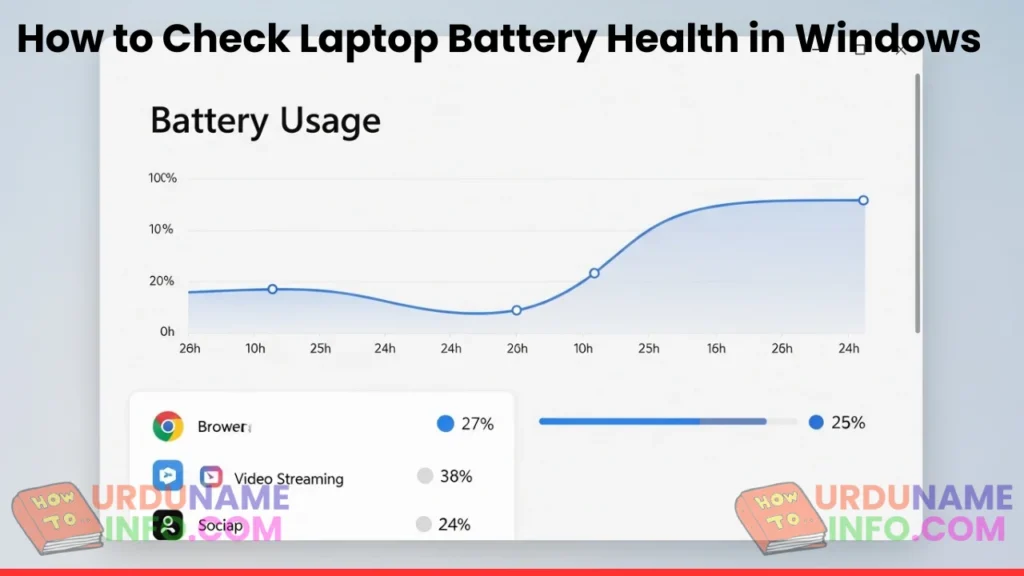
Windows Settings gives you a basic overview of battery usage. While it doesn’t show exact health percentages, it helps identify abnormal battery drain.
You can see which apps consume more power and adjust usage habits to extend battery life.
This method is useful for daily monitoring but should be combined with the battery report for accuracy.
Read More: How to Speed Up an Old Laptop Without Upgrading Hardware
Compare Design Capacity vs Full Charge Capacity
Inside the battery report, two important values matter most:
Design Capacity and Full Charge Capacity.
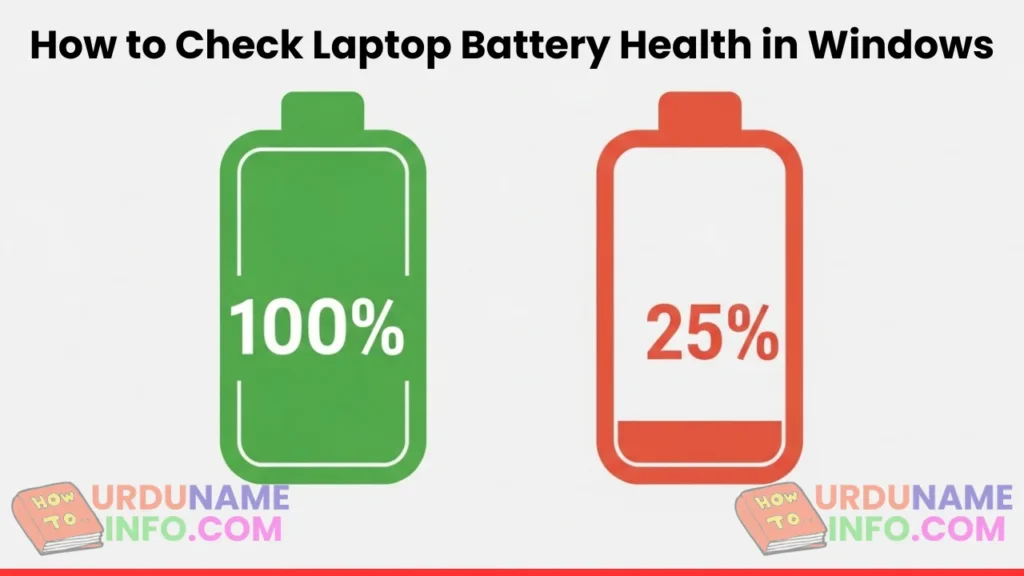
If the full charge capacity is much lower than the design capacity, it means your battery has aged. A small drop is normal, but a big difference indicates battery wear.
This comparison helps you decide whether you should continue using the battery or consider replacement.
Check Battery Cycle Count
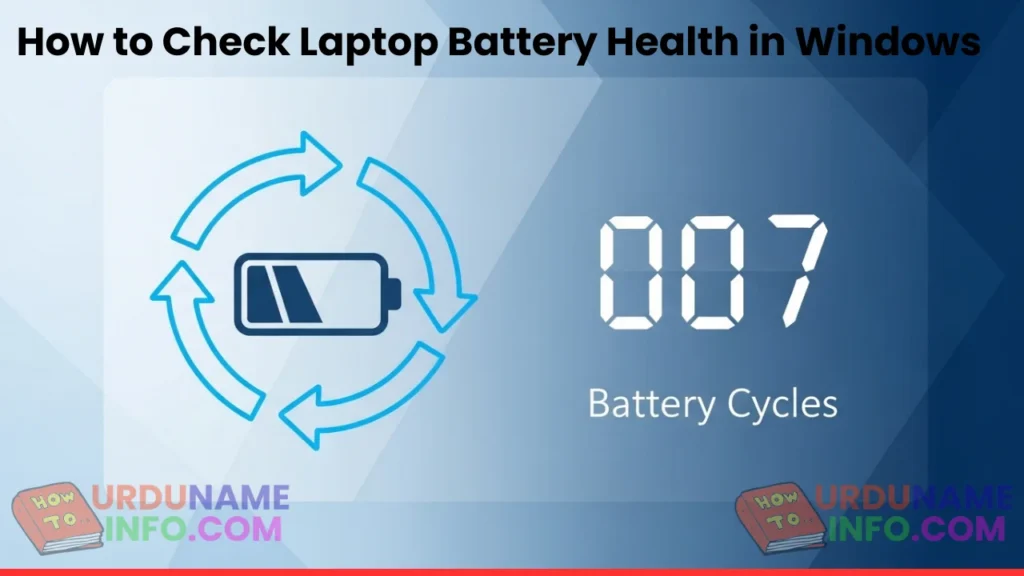
Battery cycle count tells you how many times your battery has gone through a full charge cycle. Laptop batteries are designed for a limited number of cycles.
Higher cycle count = older battery.
Lower cycle count = better battery condition.
This data is especially useful if you’re buying or selling a used laptop.
Signs of Poor Battery Health
Even without tools, some signs clearly indicate battery health issues. These include fast draining, overheating, random shutdowns, or battery percentage jumping suddenly.
If you experience multiple symptoms together, it’s likely the battery has degraded.
How Often Should You Check Battery Health?
You don’t need to check battery health daily. Once every few months is enough for normal users. If your laptop is old or used heavily, checking more often helps prevent sudden battery failure.
Regular checks help you plan battery replacement before it becomes a serious problem.
Conclusion
Checking laptop battery health in Windows is simple, free, and extremely helpful. Using Windows’ built-in battery report gives you accurate data without installing risky software. If your battery health is good, you can improve usage habits. If it’s poor, you can replace the battery at the right time instead of guessing. I have told you guys step by step how you can check your laptop battery with help.
Author

netpub60@gmail.com
Related Posts
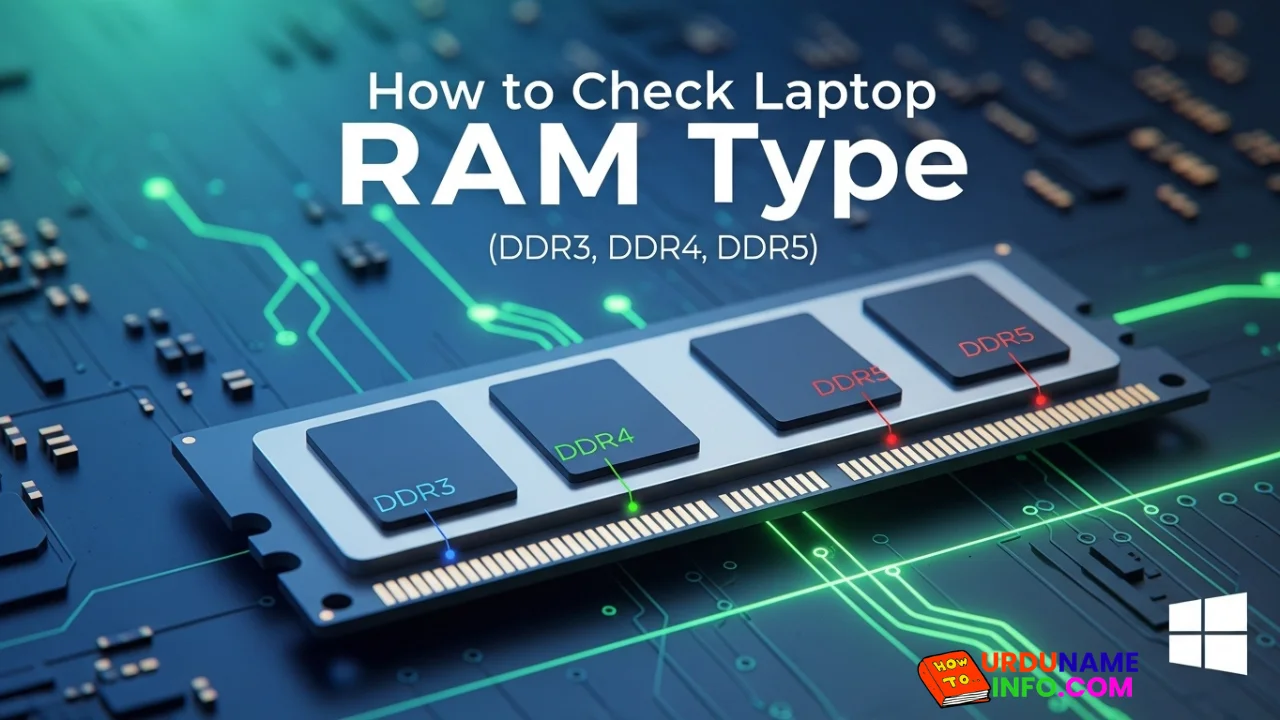
How to Check Laptop RAM Type in Windows (DDR3, DDR4, DDR5)
If you are planning to upgrade your laptop’s memory, the first thing you need to know is your RAM type. Buying the...
Read out all
How to Fix Laptop Screen Flickering in Windows
Laptop screen flickering is a common issue in Windows 10 and Windows 11. The screen may blink, flash, or refresh continuously, making...
Read out all
How to Check Internet Speed on Laptop Without App
If your internet feels slow while browsing, streaming, or downloading files, the first thing you should do is check your internet speed....
Read out all
Common Laptop Mistakes That Reduce Performance
Many people think a slow laptop means old hardware or the need for a new device. In reality, laptops often slow down...
Read out all
How to Fix USB Device Not Recognized Error
Seeing the message “USB Device Not Recognized” can be annoying, especially when you urgently need to access a flash drive, keyboard, mouse,...
Read out all
Difference Between SSD and HDD for Beginners
If you are new to computers, terms like SSD and HDD can sound confusing. Many people hear that SSD is “faster” and...
Read out all