If your internet feels slow while browsing, streaming, or downloading files, the first thing you should do is check your internet speed. Many people think they need to install software for this, but the truth is, you can check internet speed directly from your browser, no app required.
This method works on Windows, Mac, and even Chromebooks. All you need is a working internet connection and a web browser.
Let’s see how to do it properly.
Method 1: Use Google Speed Test (Quickest Way)
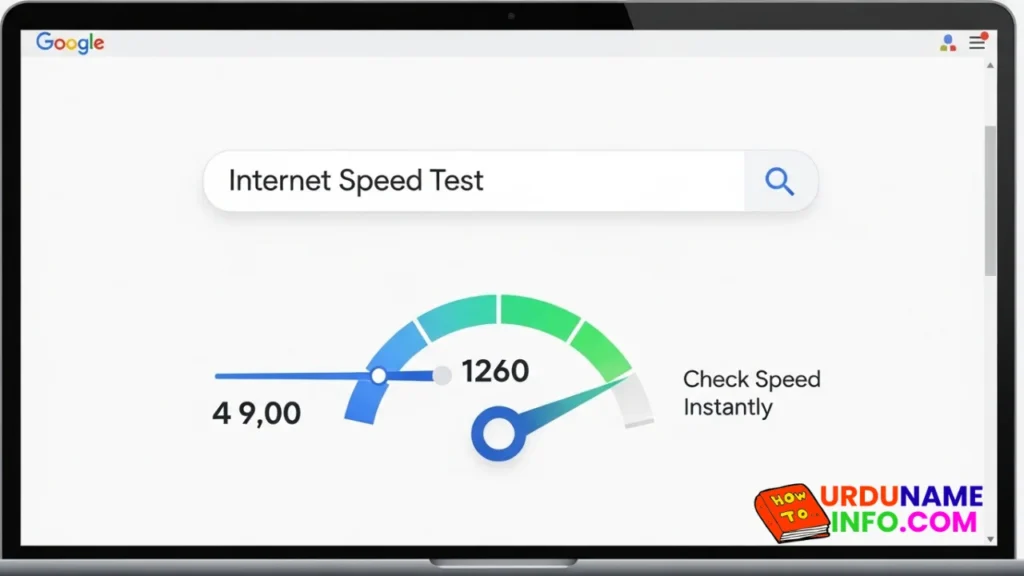
The easiest way to check internet speed on a laptop without any app is through Google. Open your browser and type “internet speed test” in the search bar.
Google will show a built-in speed test tool at the top of the results page. Click on “Run Speed Test,” and within seconds, you will see your download speed, upload speed, and ping.
This method is fast, simple, and requires no installation.
Method 2: Use Online Speed Test Websites
Another reliable method is using trusted speed test websites like Ookla Speedtest or Fast.com. These websites automatically detect your connection and measure speed in real time.
Just open the website and press the start button. Within a few seconds, the results will appear.
This method is helpful if you want more detailed results, including server location and network stability.
Read More: Common Laptop Mistakes That Reduce Performance
Understanding the Speed Test Results
When you run a speed test, you will see three main values:
Download Speed shows how fast you receive data from the internet.
Upload Speed shows how fast you send data.
Ping (Latency) measures the response time between your device and the server.
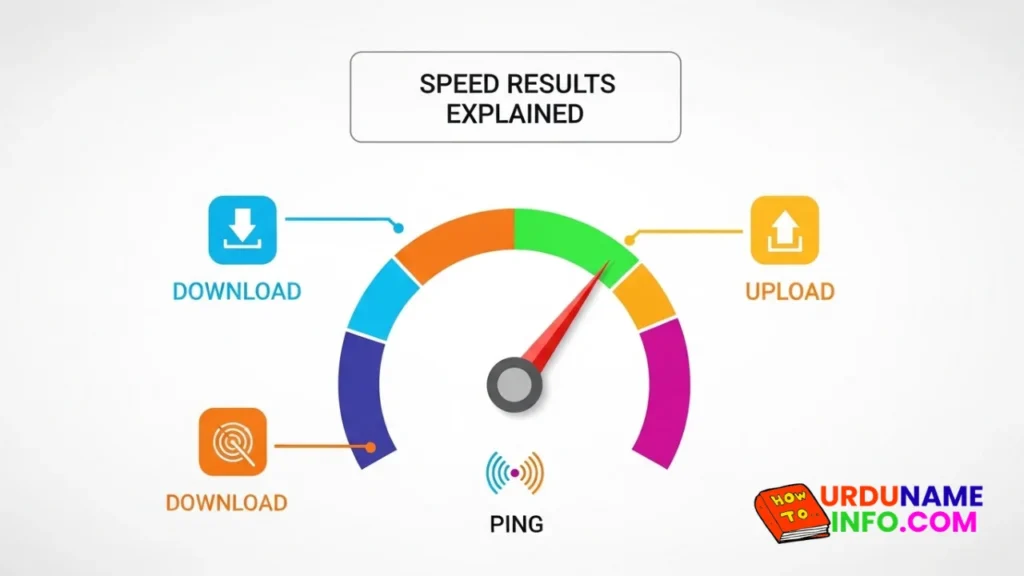
For smooth browsing and streaming, a higher download speed and lower ping are better.
Why Your Internet Speed May Be Slow
If the speed test shows low results, there could be several reasons. Too many devices connected to the same WiFi, background downloads, outdated network drivers, or weak signal strength can all affect performance.
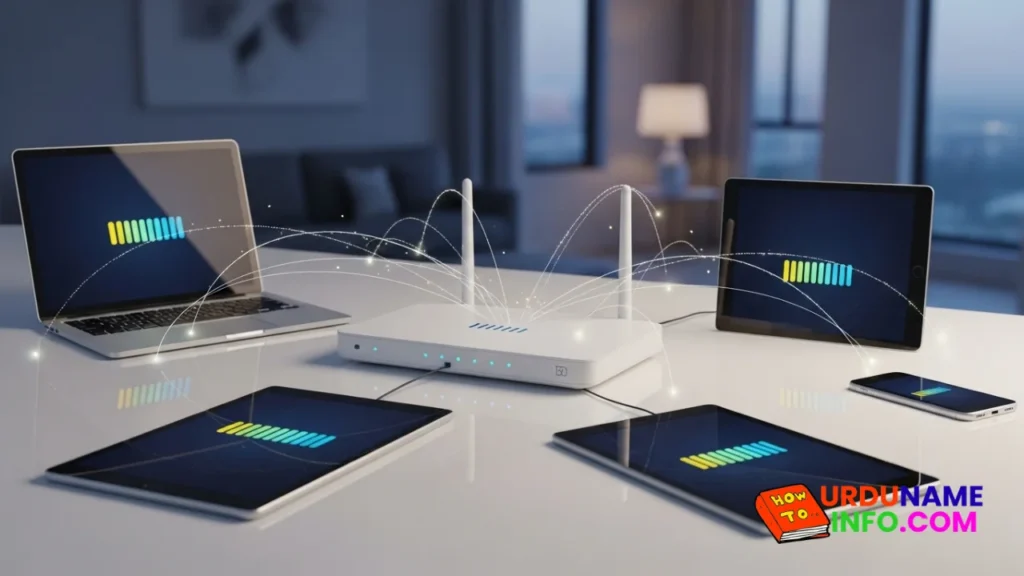
Sometimes simply restarting your router improves speed instantly.
Do You Need an App to Check Speed?
No, you do not need to install any application to check the internet speed. Browser-based tools are accurate and safe.
Installing unknown apps may slow down your laptop or cause unnecessary background usage. Online tools are the safest and fastest option.
Conclusion
Checking internet speed on your laptop without an app is simple and takes less than a minute. Using Google’s built-in test or trusted speed test websites gives you accurate results without installing anything.
If your internet feels slow, always test it first before changing settings or contacting your provider. A quick speed test helps you understand the real issue.
Author

netpub60@gmail.com
Related Posts
How to Check Laptop RAM Type in Windows (DDR3, DDR4, DDR5)
If you are planning to upgrade your laptop’s memory, the first thing you need to know is your RAM type. Buying the...
Read out all
How to Fix Laptop Screen Flickering in Windows
Laptop screen flickering is a common issue in Windows 10 and Windows 11. The screen may blink, flash, or refresh continuously, making...
Read out all
Common Laptop Mistakes That Reduce Performance
Many people think a slow laptop means old hardware or the need for a new device. In reality, laptops often slow down...
Read out all
How to Fix USB Device Not Recognized Error
Seeing the message “USB Device Not Recognized” can be annoying, especially when you urgently need to access a flash drive, keyboard, mouse,...
Read out all
Difference Between SSD and HDD for Beginners
If you are new to computers, terms like SSD and HDD can sound confusing. Many people hear that SSD is “faster” and...
Read out all
Why Laptop Is Slow After Windows Update
Many users notice that their laptop becomes slow right after installing a Windows update. Apps take longer to open, startup feels delayed,...
Read out all