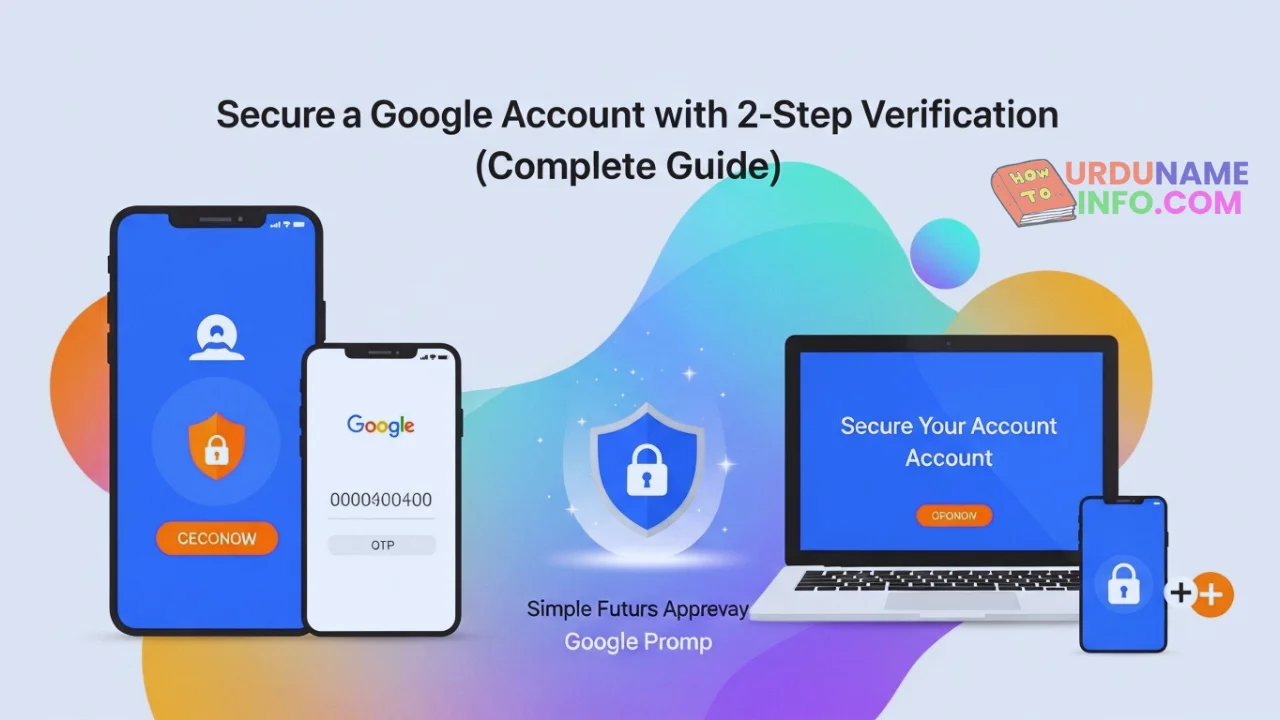
How to Secure a Google Account with 2-Step Verification (Complete Guide): In today’s digital world, your Google account is more important than ever. It stores your Gmail emails, contacts, Google Drive files, photos, YouTube data, and even saved passwords. If your Google account gets hacked, you can lose everything.
That’s why enabling 2-Step Verification (2SV) is one of the best and safest ways to protect your Google account from hackers.
In this guide, you’ll learn how to secure your Google account with 2-Step Verification, step by step, using simple and easy methods.
What Is 2-Step Verification?
2-Step Verification is an extra security layer for your Google account.
Normally, you log in using:
- Password
With 2-Step Verification, Google also asks for:
- A verification code was sent to your phone
OR - Approval from your mobile device
So even if someone knows your password, they still can’t access your account without the second step.
Why You Should Enable 2-Step Verification
Here are the main benefits:
- Protects your account from hacking
- Stops unauthorized login attempts
- Keeps Gmail, Drive, Photos, and YouTube safe
- Prevents password theft attacks
- Recommended by Google itself
If you use Gmail for work, business, or YouTube, 2SV is a must.
How to Secure a Google Account with 2-Step Verification (Step by Step)
Follow these simple steps carefully.
Step 1: Open the Google Account Security Page
- Open your browser
- Go to myaccount.google.com
- Sign in to your Google account
- Click on Security from the left menu
Step 2: Find “2-Step Verification”
- Scroll down to “Signing in to Google”
- Click on 2-Step Verification
- Click the Get Started button
- Enter your Google account password
Step 3: Choose Verification Method
Google will ask you to choose a second verification method.
Option 1: Phone Number (SMS or Call)
- Enter your mobile number
- Choose Text Message (SMS) or Phone Call
- Enter the code sent by Google
This is the most common and easiest method.
Option 2: Google Prompt (Recommended)
- Google sends a notification to your phone
- You just tap Yes to approve the login
This is more secure than SMS.
Option 3: Authenticator App (Most Secure)
You can use:
- Google Authenticator
- Microsoft Authenticator
These apps generate a code even without the internet.
Step 4: Turn On 2-Step Verification
After verifying your phone or app:
- Click Turn On
- 2-Step Verification will be enabled successfully
Your Google account is now protected.
Read More: How Google Password Manager Works (Complete Beginner Guide)
Add Backup Options (Very Important)
Backup options help you if:
- You lose your phone
- Your SIM stops working
Backup Codes
- Google gives you 10 backup codes
- Save them safely (print or write them down)
Backup Phone Number
- Add another trusted phone number
Never skip this step.
How to Check If 2-Step Verification Is Working
- Log out of your Google account
- Try logging in again
- Google will ask for:
- Password
- Verification code/approval
If yes, your 2SV is working correctly.
Frequently Asked Questions (FAQs)
Is 2-Step Verification free?
Yes, Google provides it 100% free.
Can I turn off 2-Step Verification later?
Yes, but it’s not recommended.
Is the Authenticator app better than SMS?
Yes, it’s more secure and works offline.
Will 2SV slow down login?
No, it only adds a few seconds but gives strong protection.
Can hackers bypass 2-Step Verification?
Very difficult. That’s why it’s highly recommended.
Conclusion
Securing your Google account with 2-Step Verification is one of the smartest tech decisions you can make today. It protects your personal data, emails, files, and online identity from hackers.
If you haven’t enabled it yet, do it now and stay safe online.
Author

netpub60@gmail.com
Related Posts
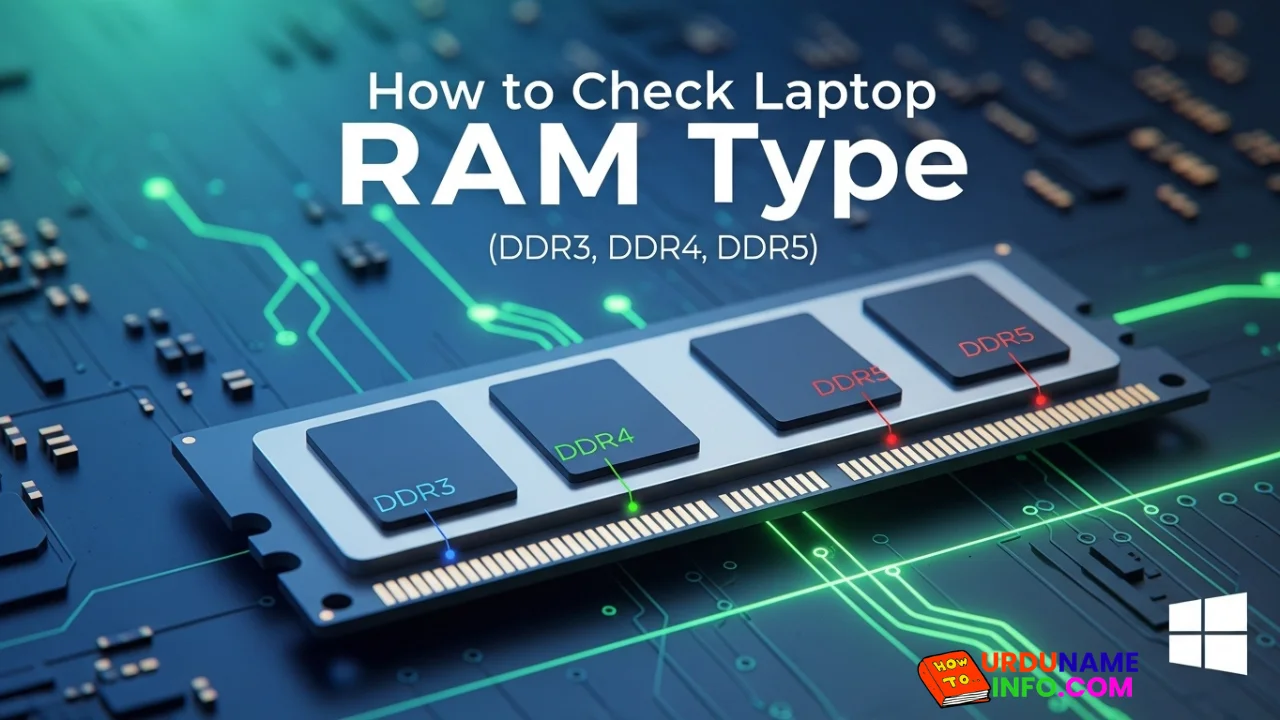
How to Check Laptop RAM Type in Windows (DDR3, DDR4, DDR5)
If you are planning to upgrade your laptop’s memory, the first thing you need to know is your RAM type. Buying the...
Read out all
How to Fix Laptop Screen Flickering in Windows
Laptop screen flickering is a common issue in Windows 10 and Windows 11. The screen may blink, flash, or refresh continuously, making...
Read out all
How to Check Internet Speed on Laptop Without App
If your internet feels slow while browsing, streaming, or downloading files, the first thing you should do is check your internet speed....
Read out all
Common Laptop Mistakes That Reduce Performance
Many people think a slow laptop means old hardware or the need for a new device. In reality, laptops often slow down...
Read out all
How to Fix USB Device Not Recognized Error
Seeing the message “USB Device Not Recognized” can be annoying, especially when you urgently need to access a flash drive, keyboard, mouse,...
Read out all
Difference Between SSD and HDD for Beginners
If you are new to computers, terms like SSD and HDD can sound confusing. Many people hear that SSD is “faster” and...
Read out all