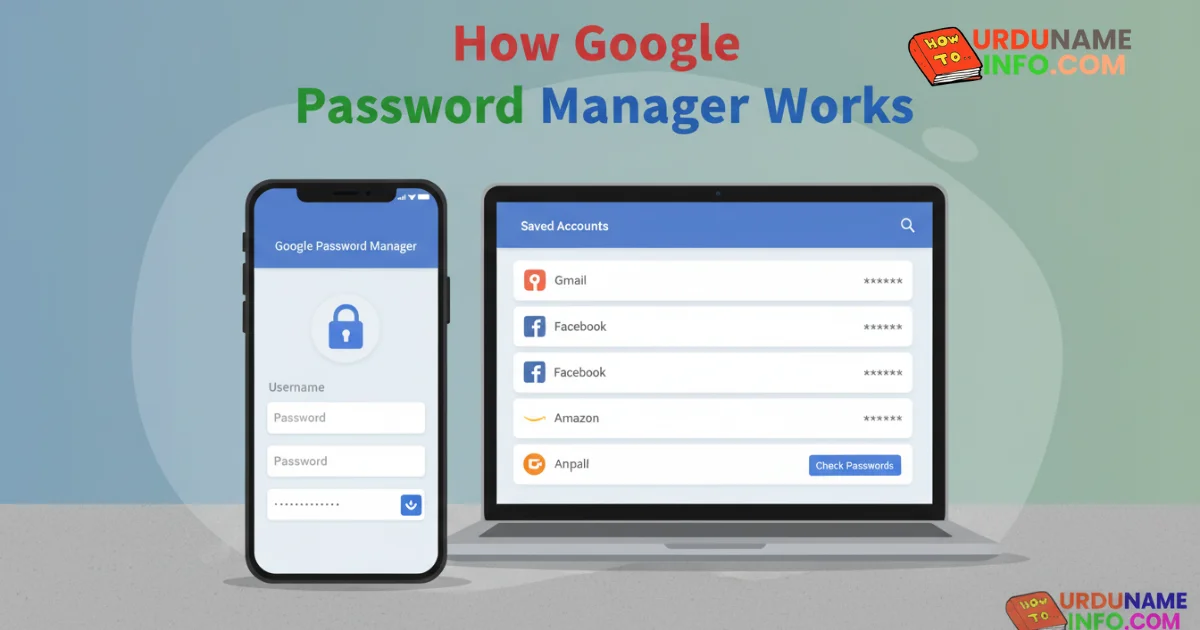
In today’s digital world, we use dozens of websites and apps every day. Remembering different passwords for each account is not easy for most people. To solve this problem, Google provides a built-in feature called Google Password Manager.
This tool helps users save, manage, and protect their passwords securely across devices. In this article, we will explain how Google Password Manager works, what it does behind the scenes, and whether it is safe to use.
What Is Google Password Manager?
Google Password Manager is a free password-saving feature provided by Google. It is available on:
- Google Chrome browser
- Android phones
- Google accounts (sync across devices)
When you log in to a website or app, Google may ask if you want to save the password. If you agree, the password is stored securely in your Google account.
The main purpose of Google Password Manager is convenience and security so users don’t reuse weak passwords or forget important login details.
How Google Password Manager Saves Passwords
When you enter a username and password on a website using Chrome or an Android device, Google Password Manager detects the login form automatically.
If password saving is enabled:
- Google asks permission to save the password
- After confirmation, the password is encrypted
- The encrypted password is linked to your Google account
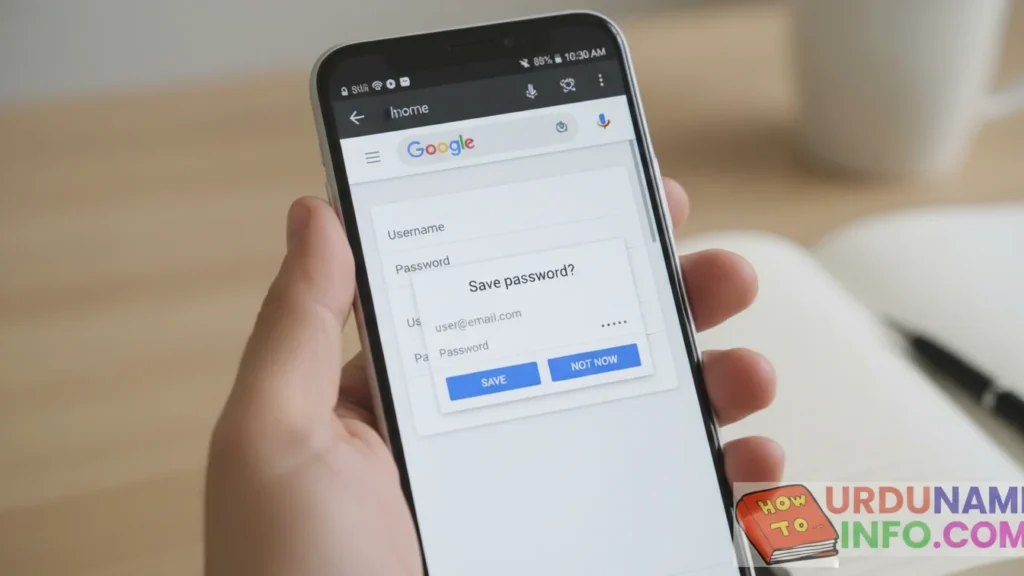
These passwords are not saved in plain text. Google uses encryption to keep them protected.
Read More: How to Fix Mobile Touch Not Working Properly
How Password Sync Works Across Devices
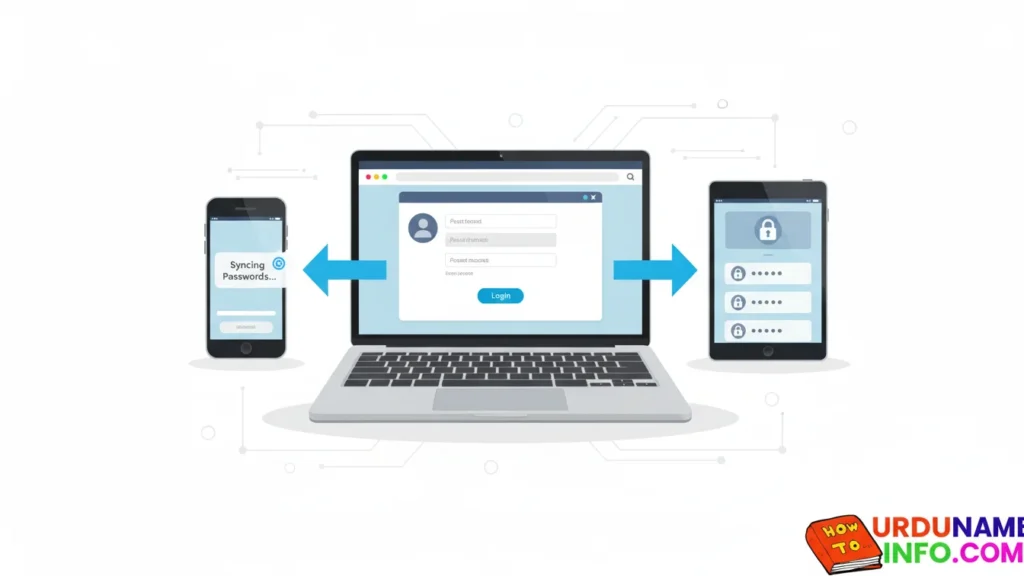
One of the most useful features of Google Password Manager is syncing.
If you are logged in to the same Google account on:
- Mobile phone
- Laptop
- Tablet
Your saved passwords automatically appear on all devices. This happens only when sync is turned ON in Google account settings.
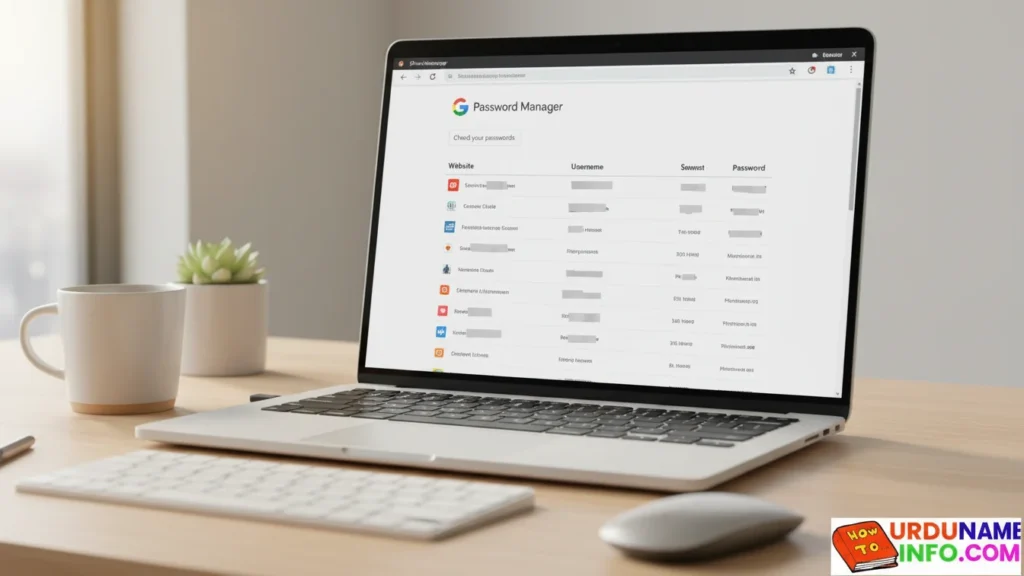
This means you don’t need to remember or manually transfer passwords from one device to another.
How Secure Is Google Password Manager?
Google Password Manager uses multiple security layers, including:
| Security Feature | How It Helps |
|---|---|
| Encryption | Passwords are encrypted before storage |
| Google Account Login | Only accessible after login |
| Device Lock | Requires screen lock on mobile |
| 2-Step Verification | Extra protection if enabled |
Google itself cannot easily read your passwords because they are encrypted. However, your account security is very important. If someone gains access to your Google account, they may also access saved passwords.
Password Checkup Feature (Very Important)
Google Password Manager includes a Password Checkup tool. This feature scans your saved passwords and alerts you if:
- A password was leaked in a data breach
- A password is weak or easy to guess
- The same password is used on multiple websites
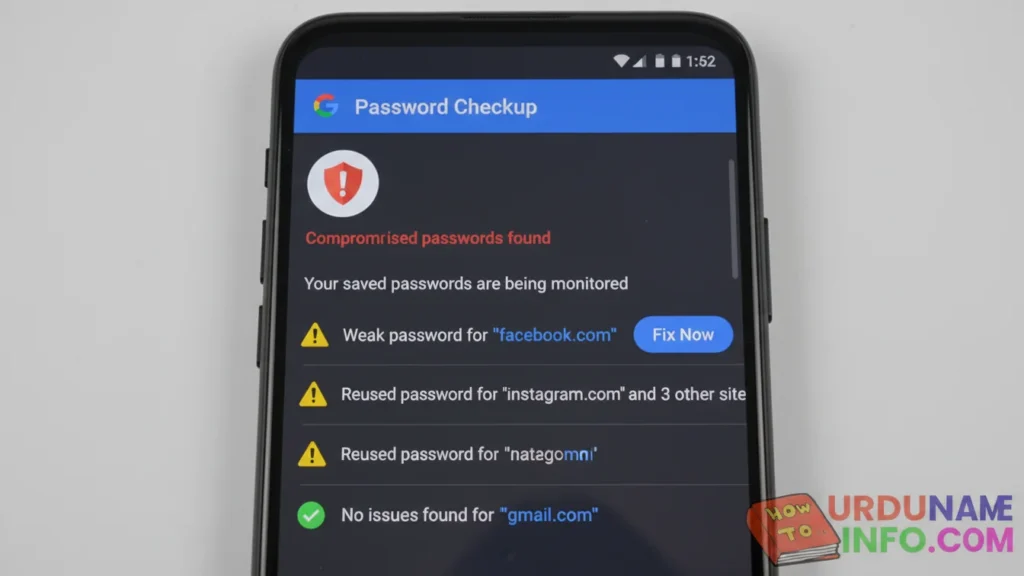
This helps users improve their online security without technical knowledge.
Advantages of Using Google Password Manager
Google Password Manager is popular because it is:
- Free to use
- Easy for beginners
- Built into Android and Chrome
- Automatically fills passwords
- Syncs across devices
For users who do not want to install third-party password apps, this is a simple and reliable option.
Limitations You Should Know
While Google Password Manager is useful, it also has some limitations:
- Works best only within the Google ecosystem
- Fewer advanced features than premium password managers
- Depends heavily on Google account security
For most normal users, these limitations are not a problem.
Should You Use Google Password Manager?
If you:
- Use an Android phone
- Use Google Chrome
- Want a simple password-saving solution
Then Google Password Manager is a safe and practical choice. Just make sure your Google account is protected with a strong password and 2-step verification.
Conclusion
Google Password Manager is designed to make online life easier and safer. It helps users store passwords securely, sync them across devices, and check for security risks. When used correctly, it reduces the chances of password-related problems.
For everyday users, it is one of the most convenient password management tools available today.
Author

netpub60@gmail.com
Related Posts
How to Check Laptop RAM Type in Windows (DDR3, DDR4, DDR5)
If you are planning to upgrade your laptop’s memory, the first thing you need to know is your RAM type. Buying the...
Read out all
How to Fix Laptop Screen Flickering in Windows
Laptop screen flickering is a common issue in Windows 10 and Windows 11. The screen may blink, flash, or refresh continuously, making...
Read out all
How to Check Internet Speed on Laptop Without App
If your internet feels slow while browsing, streaming, or downloading files, the first thing you should do is check your internet speed....
Read out all
Common Laptop Mistakes That Reduce Performance
Many people think a slow laptop means old hardware or the need for a new device. In reality, laptops often slow down...
Read out all
How to Fix USB Device Not Recognized Error
Seeing the message “USB Device Not Recognized” can be annoying, especially when you urgently need to access a flash drive, keyboard, mouse,...
Read out all
Difference Between SSD and HDD for Beginners
If you are new to computers, terms like SSD and HDD can sound confusing. Many people hear that SSD is “faster” and...
Read out all