Many people are involved in fraud or similar things and most of the people are searching for the call record option in their mobile phones because there are many companies that have hidden this feature due to privacy rules. Today we will see in this article how you people can enable the call record option in your mobile phone. We will tell you step by step in your mobile. Read this article till the end.
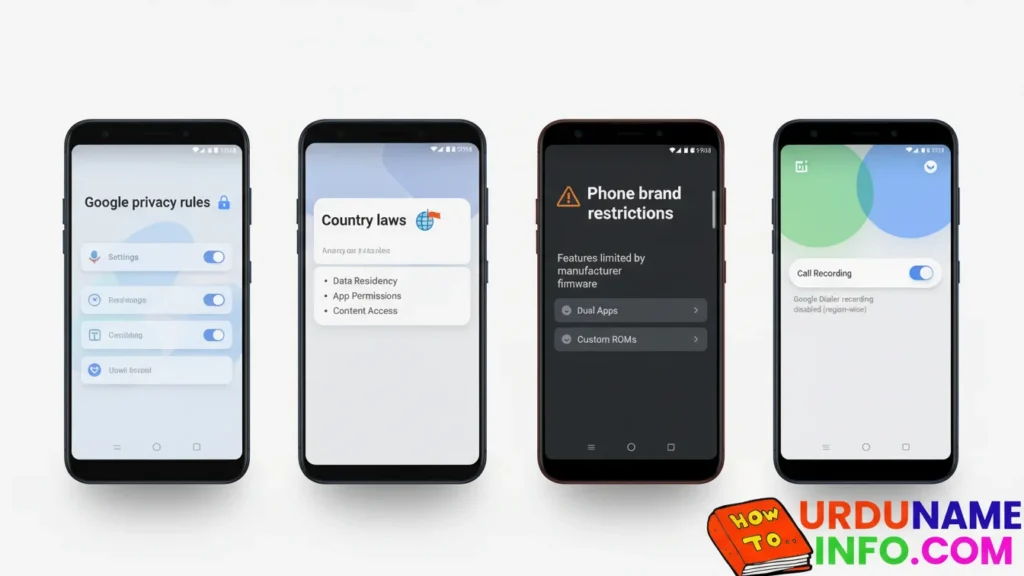
Why Call Recording Feature Hidden in Many Phones?
- Google privacy rules
- Country laws
- Phone brand restrictions
- Google Dialer me recording option region-wise disable hota hai
By following all these steps, you can enable the call recording option on your mobile phone.
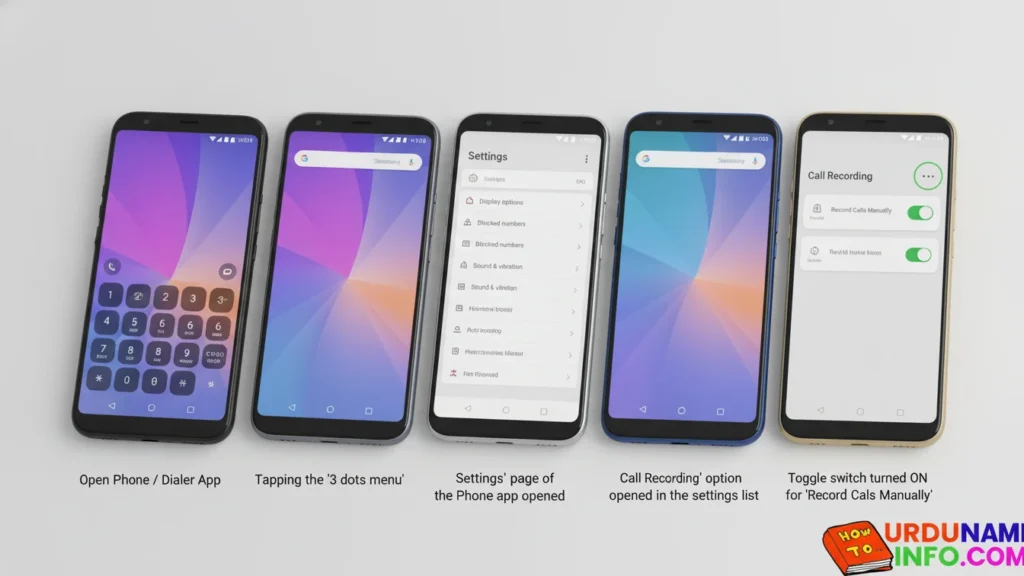
Method 1: Enable Call Recording from Phone App
Steps:
- Open the Phone / Dialer App
- Tap 3 dots (Menu)
- Open Settings
- Tap Call Recording
- Turn ON Record Calls Manually
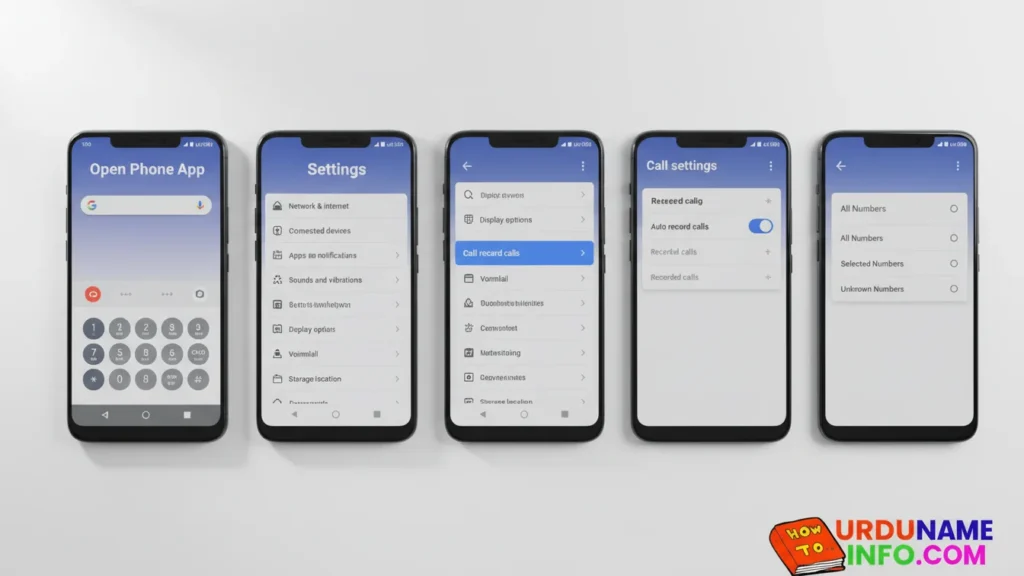
Method 2: Enable Auto Call Recording
If you have the call recording action enabled on your mobile phone, you can enable the option by following the steps below.
- Open Phone App
- Go to Settings
- Tap Call Recording
- Turn ON Auto Record Calls
- Choose:
- All Numbers
- Selected Numbers
- Unknown Numbers
Method 3: Call Recording in Xiaomi / Redmi / Poco
- Open Phone App
- Tap Settings
- Tap Call Recording
- Turn ON Record Calls Automatically
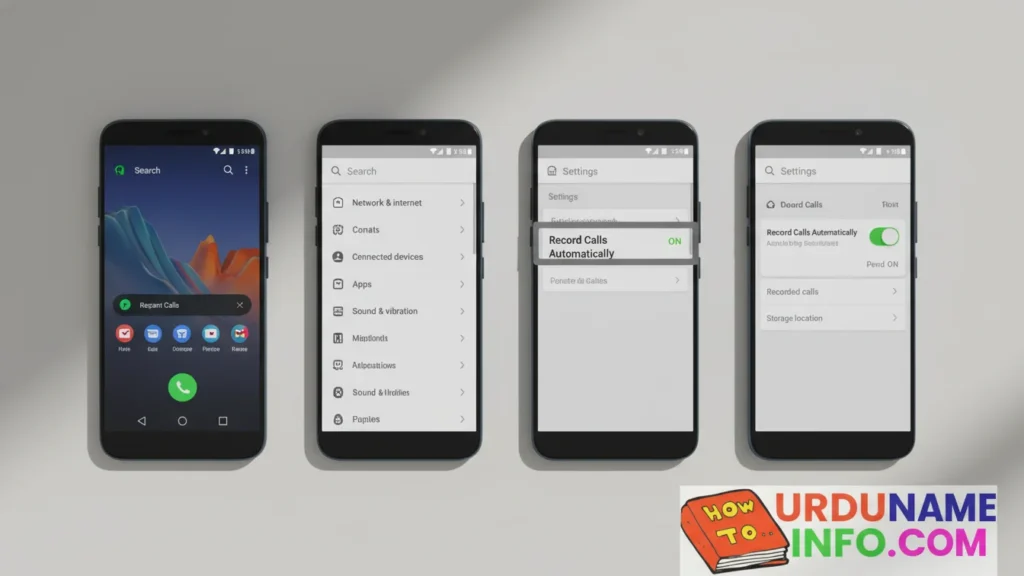
The built-in recording on Xiaomi phones is very powerful.
Read More:
- How to Speed Up Slow Internet in Mobile Full Guide
- How to Remove Virus from Mobile Without Reset
- How to Check Original vs Fake Mobile Battery (Full Guide)
Method 4: Call Recording in Samsung
- Open Phone App
- Tap 3 dots
- Open Settings
- Tap Record Calls
- Turn ON manual or auto recording
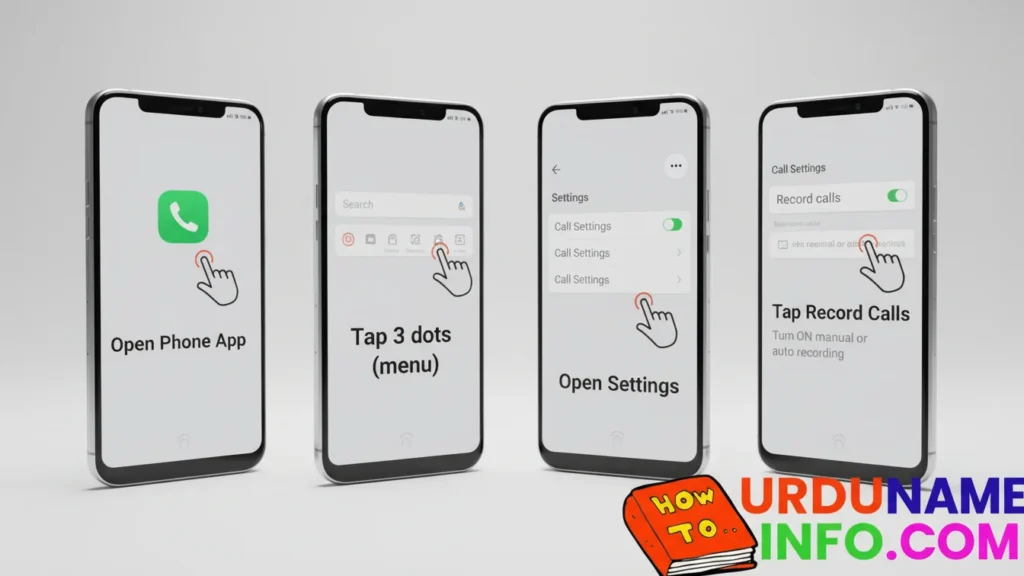
Samsung doesn’t have Google Dollar, so the feature is always available.
Method 5: Call Recording in Oppo / Realme / OnePlus
Agar ColorOS / Realme UI me ho:
- Open Phone App
- Tap Settings
- Tap Call Recording
- Turn ON Auto Recording / Manual Recording
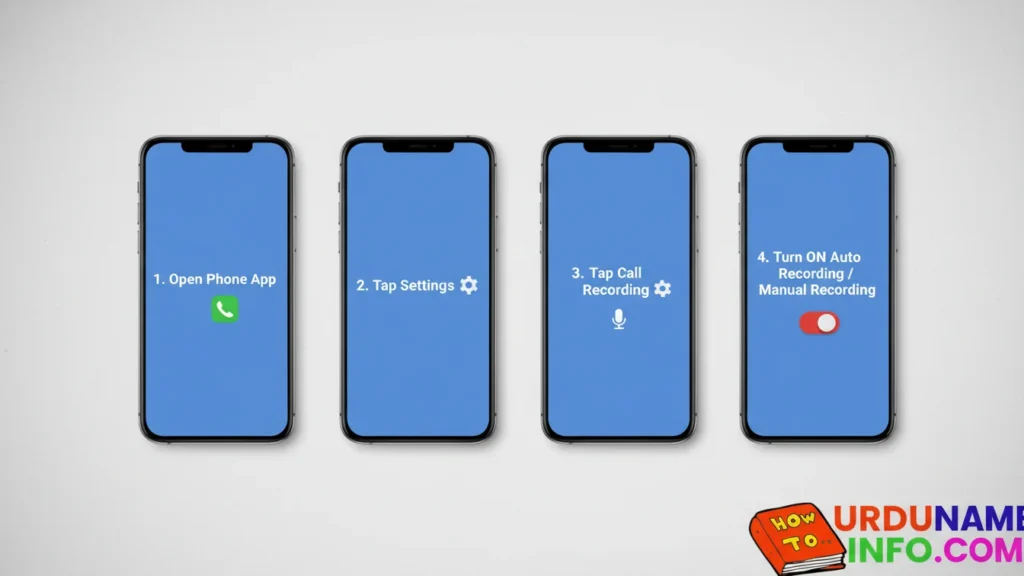
This feature is gradually being added to new updates, but is mostly unavailable.
Conclusion
In this article, I have told you in full detail how you people can enable the call recording option on your mobile. Apple brother, I have told the step-up people and some people also think that it is not possible in Android mobiles. No, it is possible. You can enable it in any Android mobile phone. If you people have any problem in the call recording option, then you can ask us in the comment section. We will definitely answer you. If this or any other problem, then you can also ask us in the comment.
Author

netpub60@gmail.com
Related Posts
How to Check Laptop RAM Type in Windows (DDR3, DDR4, DDR5)
If you are planning to upgrade your laptop’s memory, the first thing you need to know is your RAM type. Buying the...
Read out all
How to Fix Laptop Screen Flickering in Windows
Laptop screen flickering is a common issue in Windows 10 and Windows 11. The screen may blink, flash, or refresh continuously, making...
Read out all
How to Check Internet Speed on Laptop Without App
If your internet feels slow while browsing, streaming, or downloading files, the first thing you should do is check your internet speed....
Read out all
Common Laptop Mistakes That Reduce Performance
Many people think a slow laptop means old hardware or the need for a new device. In reality, laptops often slow down...
Read out all
How to Fix USB Device Not Recognized Error
Seeing the message “USB Device Not Recognized” can be annoying, especially when you urgently need to access a flash drive, keyboard, mouse,...
Read out all
Difference Between SSD and HDD for Beginners
If you are new to computers, terms like SSD and HDD can sound confusing. Many people hear that SSD is “faster” and...
Read out all