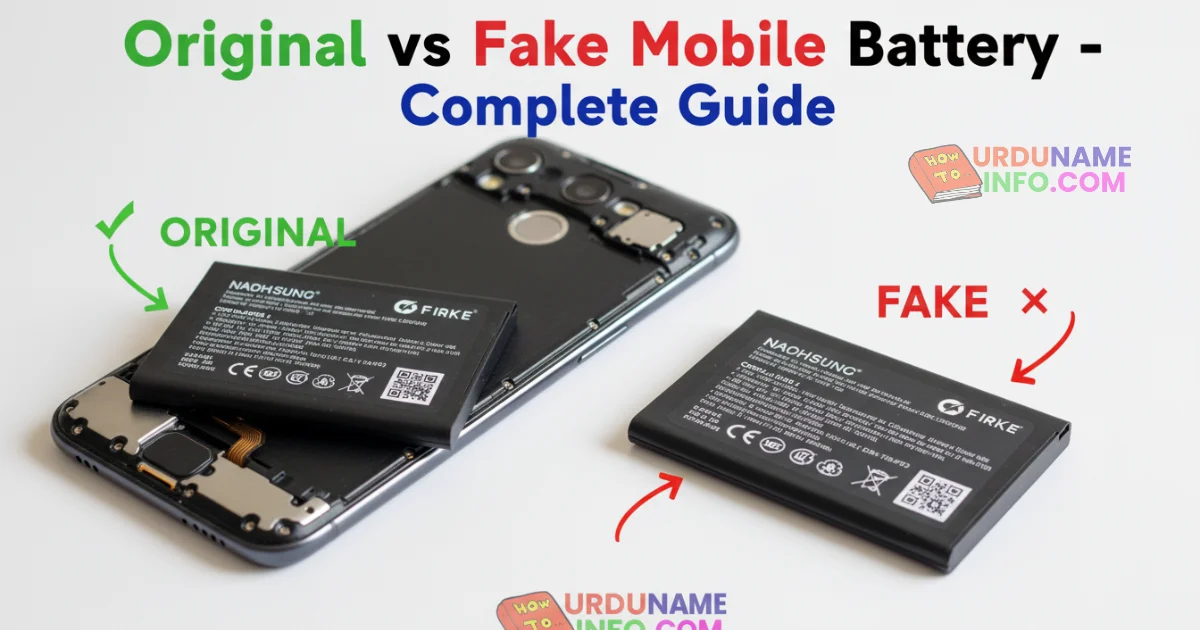
Most of the mobile phone battery in the market is fake, there are many fake batteries, the original battery is not known, which is the fake battery, which is the original battery, the sellers give us the fake battery in hand, in this article we will tell you completely how you can check the original battery, how you can identify the fake battery, I will tell you everything step by step in full detail, how will you know that this battery is original. Or it’s fake
What Makes a Battery Fake or Original?
Below I have given some detail which shows whether this battery is fake or original now read below steps
Original battery:
- Tested, safe, certified
- Proper branding, serial number
- Stable backup
Fake battery:
- No testing
- Low-quality cells
- Faster heat, swelling, blast risk
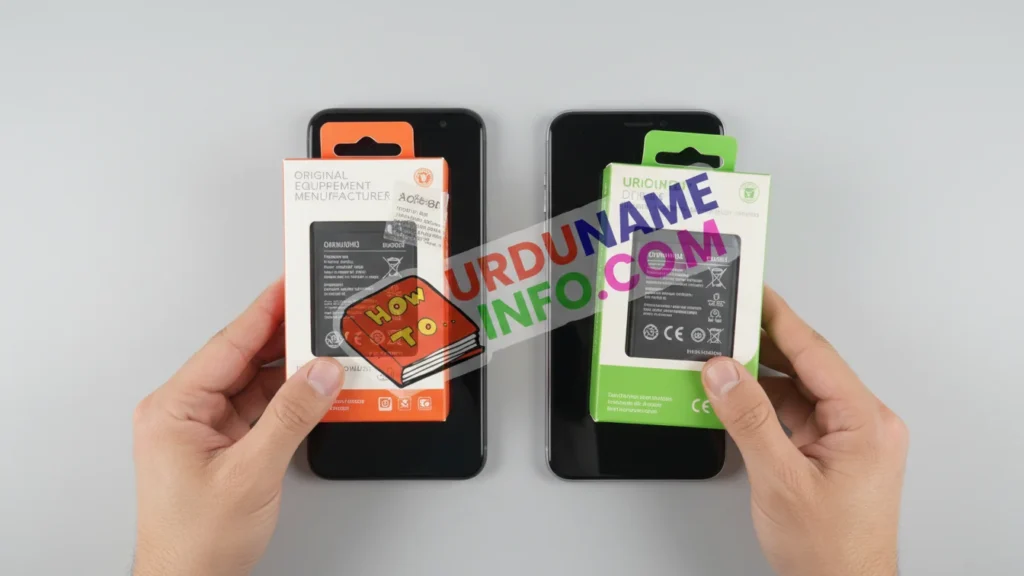
Check Battery Packaging & Seal
Original batteries always come in high-quality packaging with:
- Clean and sharp printing
- Security seals or holograms
- Brand logo
- Scratch code (for some companies)
Fake batteries usually have:
- Blurry printing
- No seal
- Faded logo
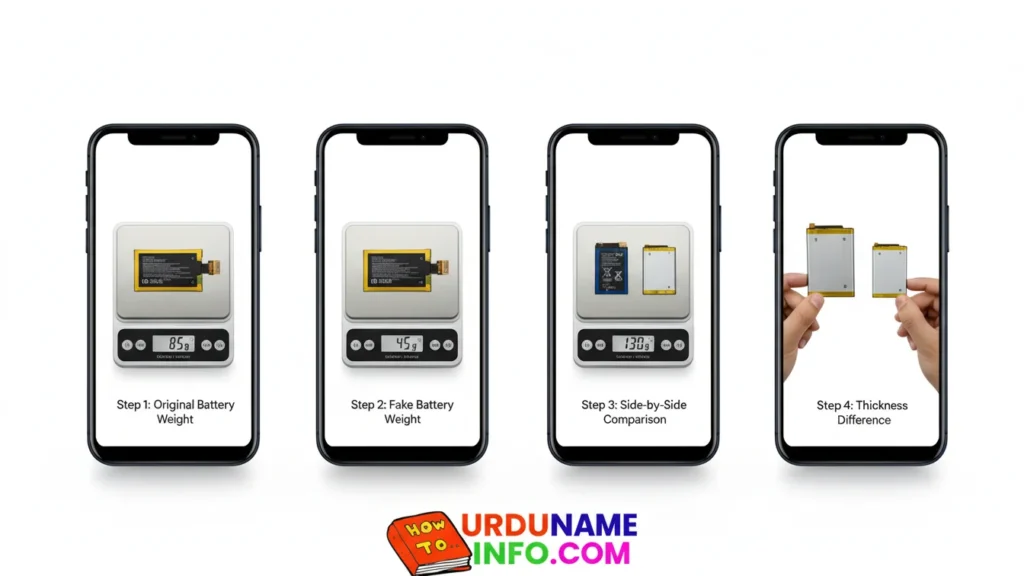
Check Battery Weight
Original batteries are slightly heavier because they use real lithium-ion cells. Fake batteries are lighter because they use cheap or empty cells.
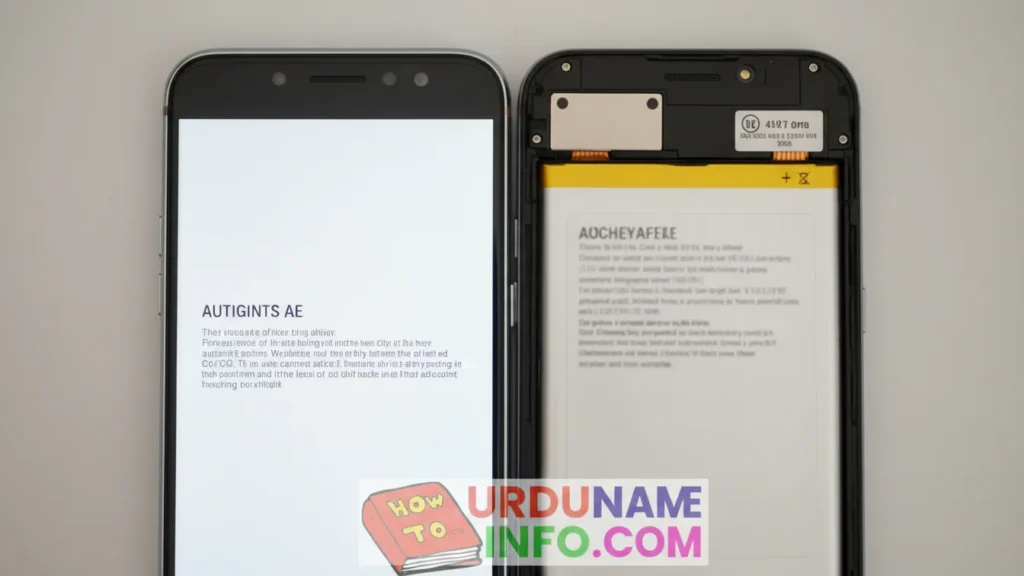
Check Label Printing Quality
Original battery label printing is:
- Sharp and clear
- Properly aligned
- Includes barcode
- No ink smell
Fake batteries have:
- Blurry or smudged printing
- Misaligned text
- Light or faded logo
- Strong ink smell
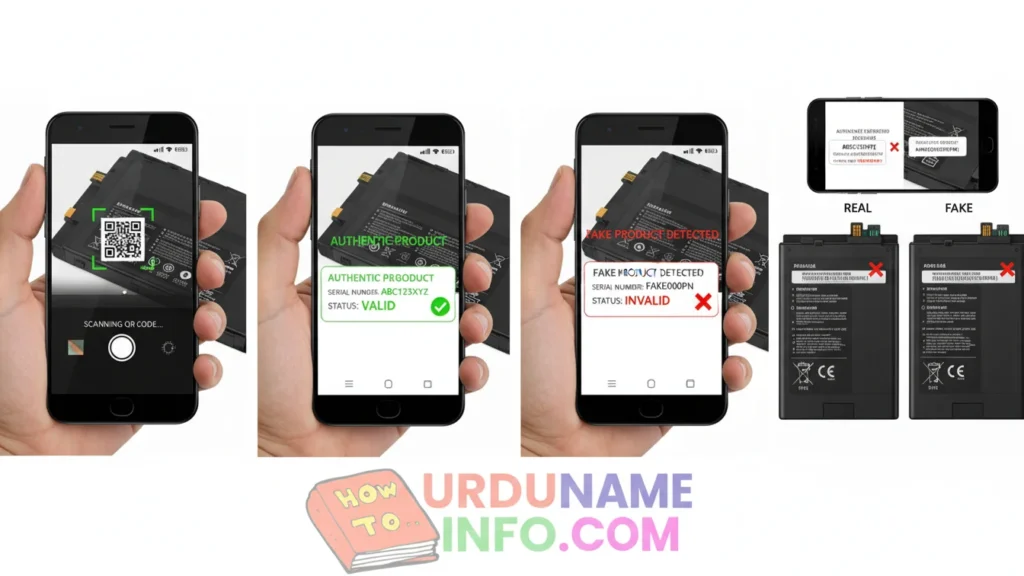
Check Serial Number & QR Code
Original battery connector:
- Smooth edges
- Straight pins
- Gold-plated contacts
Fake battery connector:
- Cheap metal
- Bent pins
- Rough edges
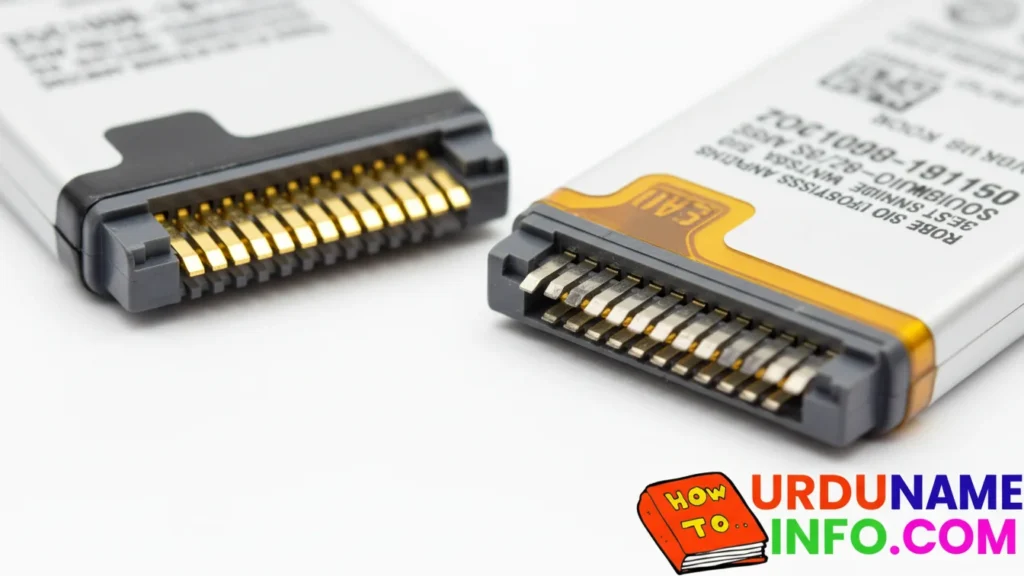
Check Battery Connector Quality
Original battery connector:
- Smooth edges
- Straight pins
- Gold-plated contacts
Fake battery connector:
- Cheap metal
- Bent pins
- Rough edges
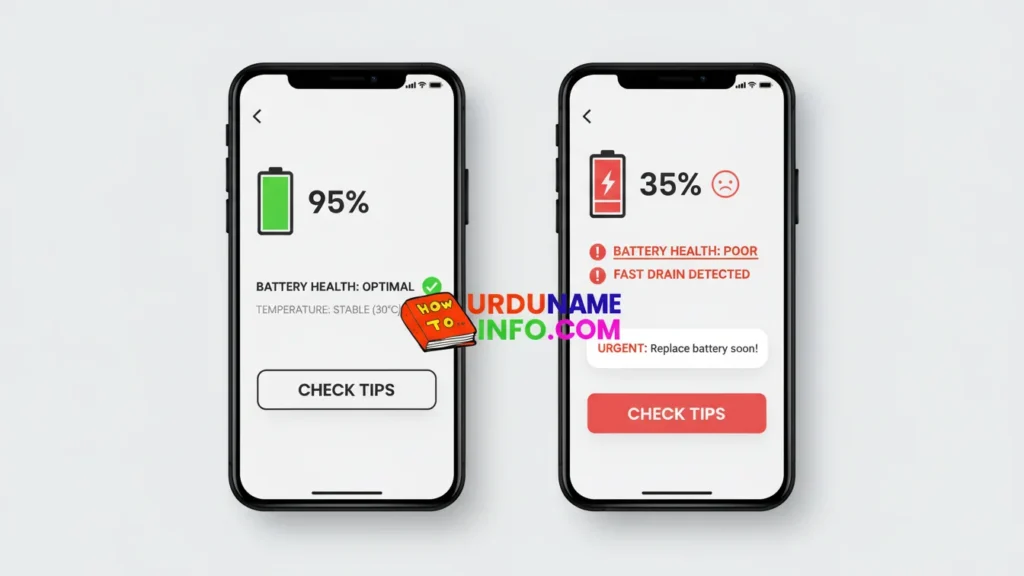
Phone Settings Se Battery Health Check
You can also check from your mobile phone whether the battery is fake or original see below steps
Original battery:
- 90%+ health (if new)
- Stable temperature
- Shows correct capacity (mAh)
Fake battery:
- mAh mismatch
- Rapid health drop
- Temperature warnings
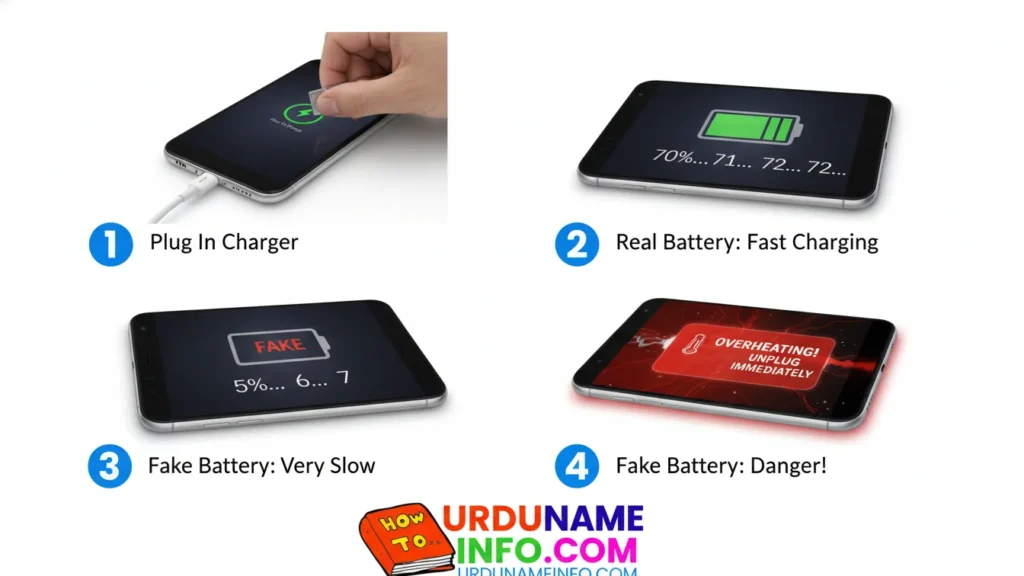
Charging Speed Test
You can also check the charging speed of your mobile phone whether your battery is fake or original. You will understand by watching the step below.
Original battery:
- Charges smoothly
- Accepts fast charging
- Stays cool
Fake battery:
- Charges very slowly
- Heats up
- Stops charging repeatedly
Read More:
- How to Clean Mobile Screen at Home (Without Scratches)
- How to Lock WhatsApp Without Any App
- How to Fix Slow Charging Issue on OPPO A54
FAQs
Q1: Fake battery dangerous hoti hai?
Yes overheating, swelling, and even blast risk hota hai.
Q2: Battery mAh mismatch se pata chal jata hai?
Haan fake batteries me real capacity nahi hoti.
Q3: Best way to confirm originality?
Serial number + QR verification + weight test.
Conclusion
In this article I have told you completely how you can check the battery whether it is fake or original I have told you all this in simple steps and easy how you can check I hope you will like this article if you have any problem then you can ask us in the comment section we will answer you.
Author

netpub60@gmail.com
Related Posts
How to Check Laptop RAM Type in Windows (DDR3, DDR4, DDR5)
If you are planning to upgrade your laptop’s memory, the first thing you need to know is your RAM type. Buying the...
Read out all
How to Fix Laptop Screen Flickering in Windows
Laptop screen flickering is a common issue in Windows 10 and Windows 11. The screen may blink, flash, or refresh continuously, making...
Read out all
How to Check Internet Speed on Laptop Without App
If your internet feels slow while browsing, streaming, or downloading files, the first thing you should do is check your internet speed....
Read out all
Common Laptop Mistakes That Reduce Performance
Many people think a slow laptop means old hardware or the need for a new device. In reality, laptops often slow down...
Read out all
How to Fix USB Device Not Recognized Error
Seeing the message “USB Device Not Recognized” can be annoying, especially when you urgently need to access a flash drive, keyboard, mouse,...
Read out all
Difference Between SSD and HDD for Beginners
If you are new to computers, terms like SSD and HDD can sound confusing. Many people hear that SSD is “faster” and...
Read out all