For unknown people or those numbers that you don’t like or those scammers who are harassing you by calling you repeatedly, the only solution is to put them directly in the block list. In this article, we will learn in full detail how you can put any number in the block list on your Oppo A54 mobile phone and how you can unblock it again. I will give you all this step by step in detail in this article. Must read till the end.
To block any number, I have given you two methods below. By following any one of them, you can block any number. If one method does not work, use the second
Block Unknown Numbers Using Phone Settings
To block the numbers of known people or people you don’t like, Oppo A54 has given a built-in option inside its mobile phone, through which you can block any person from your mobile phone. We have told you step by step how to block you, follow the step by step.
Steps:
Open the Phone (Dialer) app.
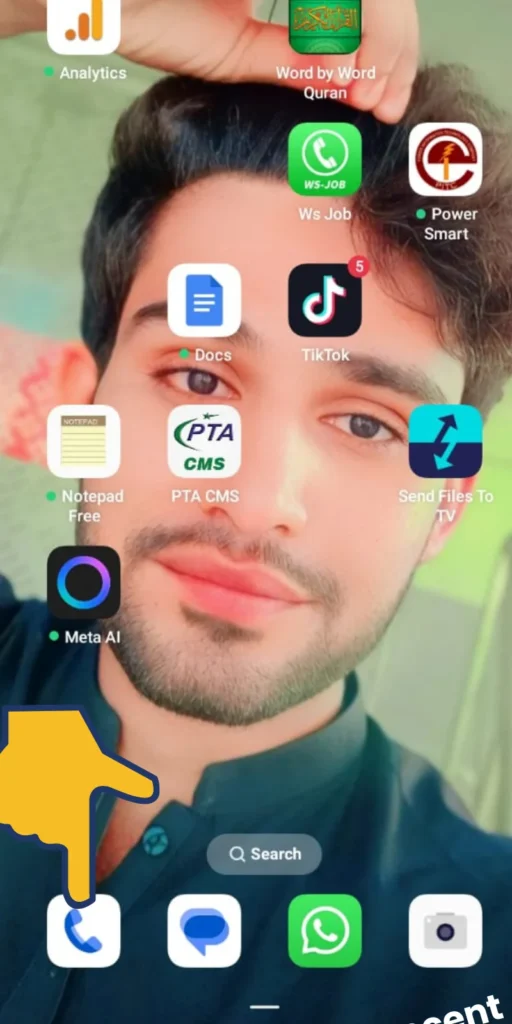
Tap the three dots (⋮) in the top-right corner.
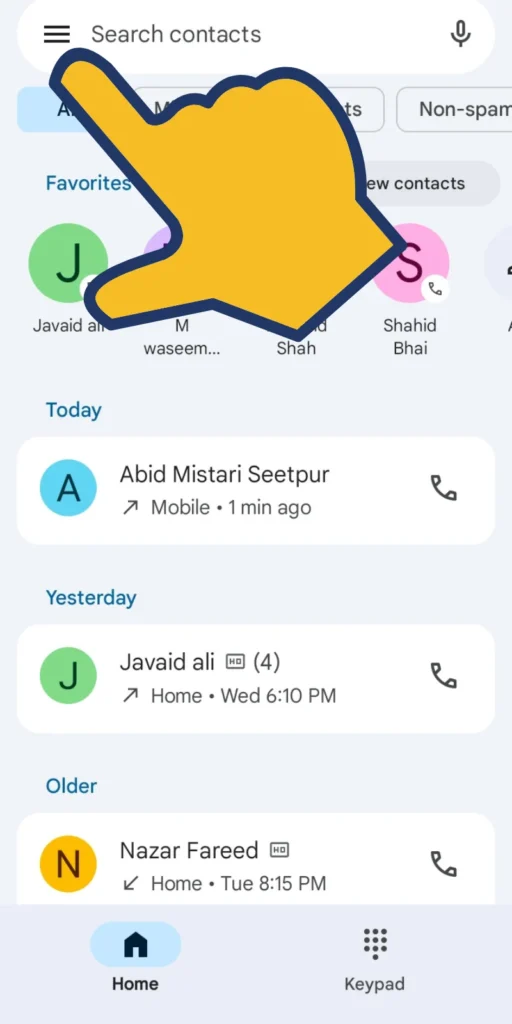
Select Settings.
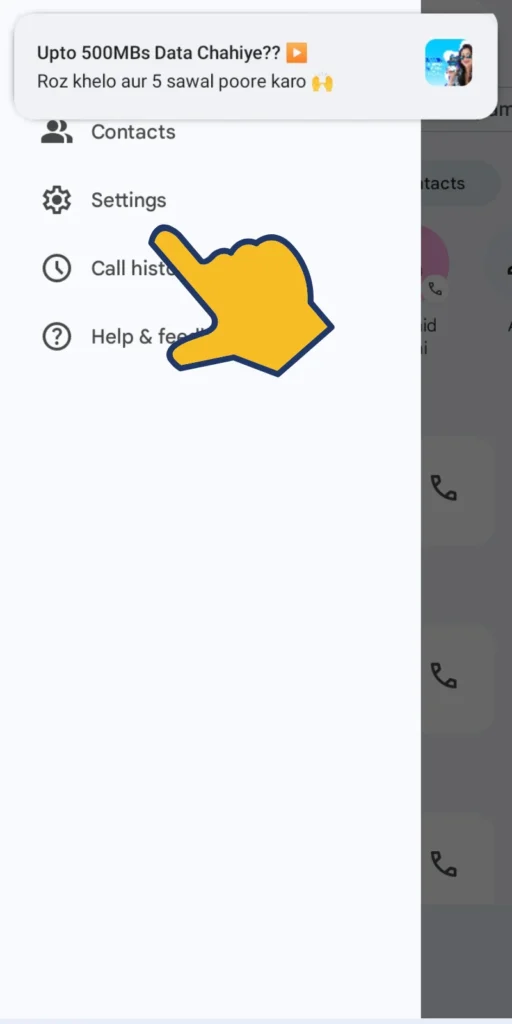
Tap Block & Filter or Blocked Numbers.
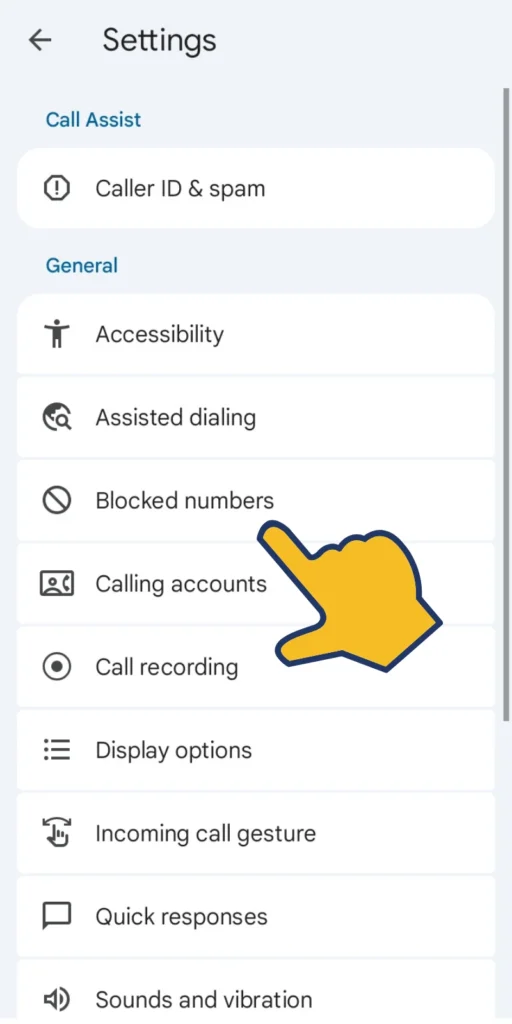
Enable the option:
- Block Unknown Numbers
- Block Private/Hidden Numbers
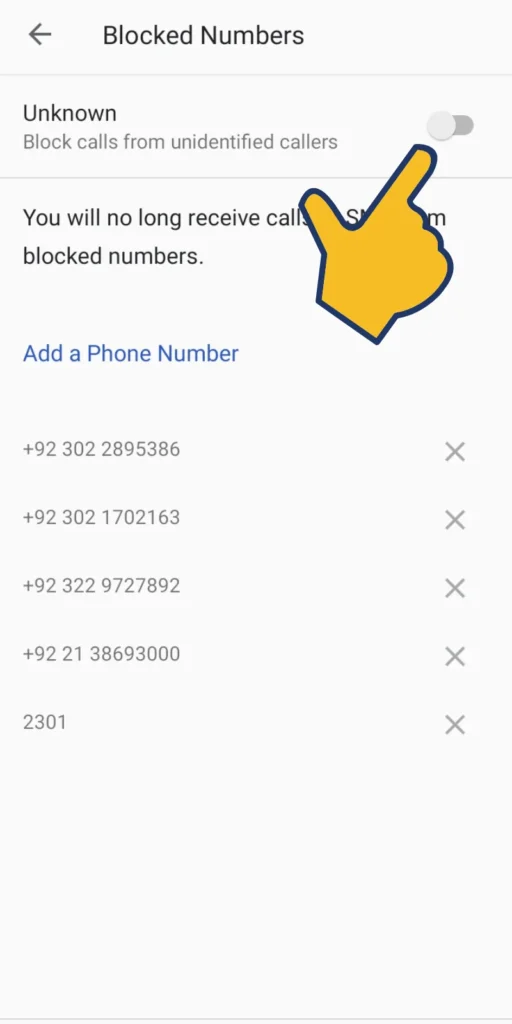
By following all the steps above, you can now add any number to the block list.
Block a Specific Number Manually
If someone repeatedly disturbs you, you can block that specific number directly from recent calls.
Steps:
Open the Phone app.
Go to the Recent Calls list.
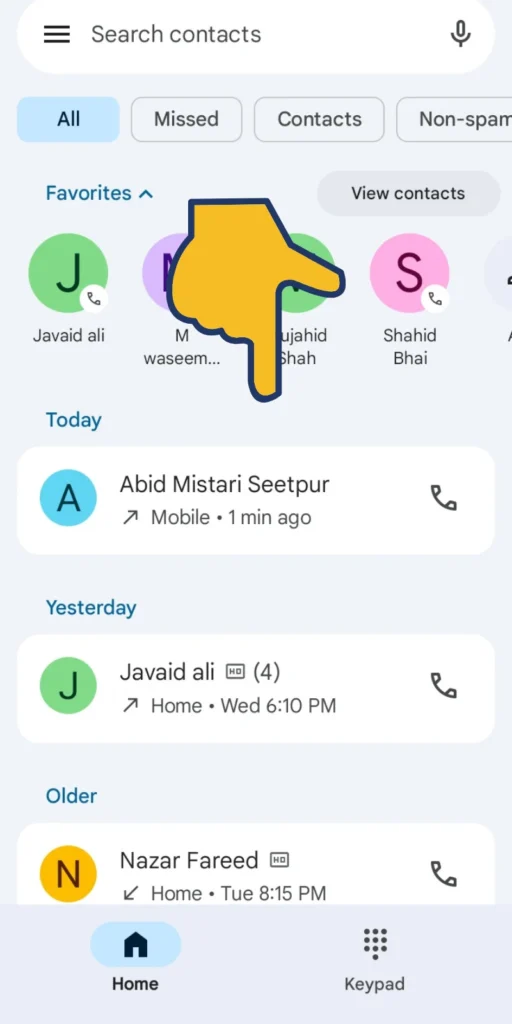
Tap and hold the number you want to block.
Select Block / Mark as Spam.
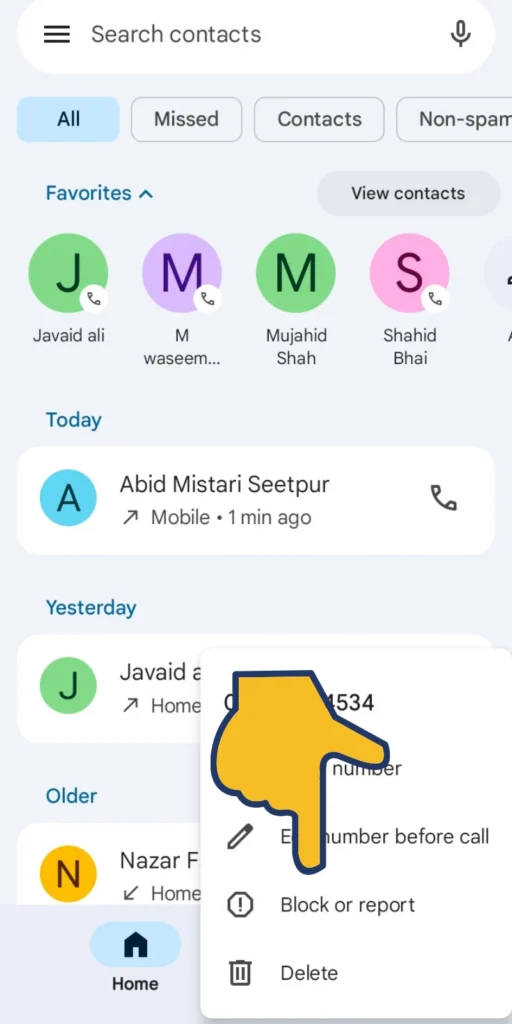
Confirm by tapping Block.
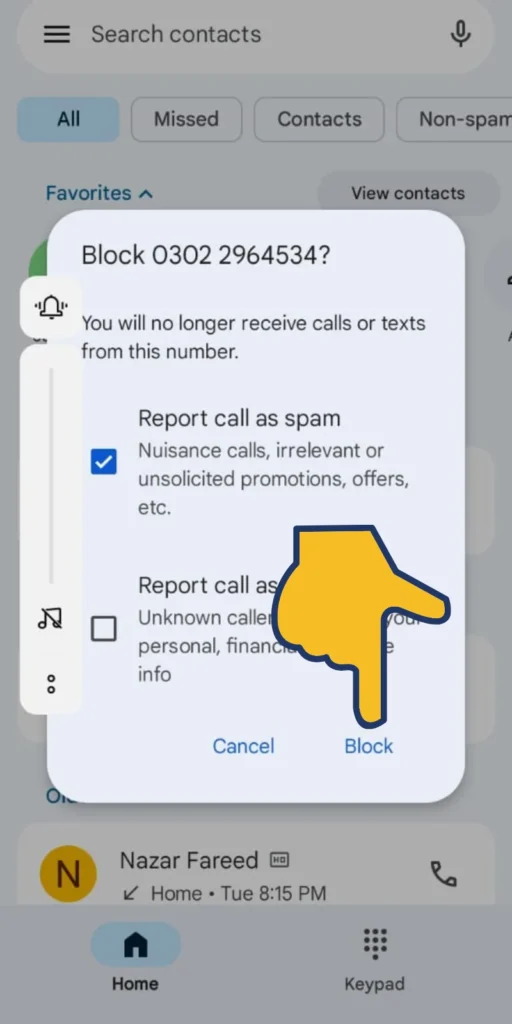
The number will no longer be able to call or message you.
Block Unknown Numbers Using Security Features
ColorOS includes a smart filter that automatically detects spam and promotional calls.
Steps:
- Open Settings.
- Scroll down and tap Security.
- Tap Anti-Harassment or Block & Filter.
- Turn ON:
- Block strangers
- Block all unknown callers
This enhances caller protection and helps reduce unwanted calls dramatically.
Read More:
- How to Stop Background Apps on OPPO A54
- How to Enable App Lock on OPPO A54 (Without Third-Party Apps)
- How to Enable Split Screen on OPPO A54
How to Unblock a Number (If Needed)
If you accidentally blocked someone, you can unblock them easily.
Steps:
- Open Phone app.
- Tap Settings → Blocked Numbers.
- Find the number you want to unblock.
- Tap Remove / Unblock.
Conclusion
In this article, I have told you in full detail how you can block unknown numbers on your Oppo H4 mobile. I have mentioned three methods above and also told you how you can unblock them. I hope you liked this article. If you liked it, then please give your opinion in the comments.
Author

netpub60@gmail.com
Related Posts

How to Check Laptop RAM Type in Windows (DDR3, DDR4, DDR5)
If you are planning to upgrade your laptop’s memory, the first thing you need to know is your RAM type. Buying the...
Read out all
How to Fix Laptop Screen Flickering in Windows
Laptop screen flickering is a common issue in Windows 10 and Windows 11. The screen may blink, flash, or refresh continuously, making...
Read out all
How to Check Internet Speed on Laptop Without App
If your internet feels slow while browsing, streaming, or downloading files, the first thing you should do is check your internet speed....
Read out all
Common Laptop Mistakes That Reduce Performance
Many people think a slow laptop means old hardware or the need for a new device. In reality, laptops often slow down...
Read out all
How to Fix USB Device Not Recognized Error
Seeing the message “USB Device Not Recognized” can be annoying, especially when you urgently need to access a flash drive, keyboard, mouse,...
Read out all
Difference Between SSD and HDD for Beginners
If you are new to computers, terms like SSD and HDD can sound confusing. Many people hear that SSD is “faster” and...
Read out all