
Whenever you start or run your mobile phone, sometimes it freezes, sometimes it runs slowly. This happens when your temporary files and unused data start accumulating. The Oppo A54 model is a very reliable brand, it is a good brand, when its storage gets full or when the cache etc. are empty, it opens apps a little slowly and other tasks are also done a little, people don’t have to worry. Clearing cache is completely safe it does not delete your photos, contacts, messages, or app data. It only removes temporary files that your phone no longer needs.
Types of Cache on OPPO A54
Oppo A54 stores different types of temporary data and each type has its own purpose. To understand the difference, I have explained step by step below what each one has for what purpose.
App Cache
These temporary files are saved by individual apps like Facebook, TikTok, YouTube, Instagram, and Twitter.
System Cache
Temporary files that your phone’s system and interface create while performing different tasks.
Browser Cache
Files stored by browsers like Chrome to help websites load faster and improve your overall browsing experience.
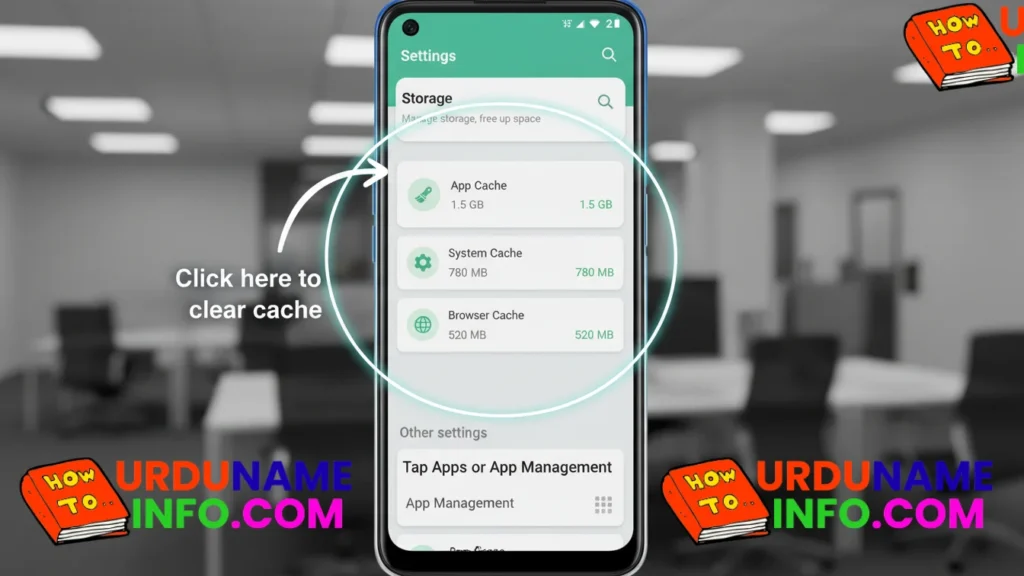
Cache Types Comparison
| Cache Type | What It Stores | Effect on Phone |
|---|---|---|
| App Cache | App-related temporary files | Apps may lag |
| System Cache | System/UI temporary data | Slower interface |
| Browser Cache | Website images and scripts | Slow browsing |
Read More: How to Improve Battery Life on OPPO A54
How to Clear App Cache on OPPO A54
This is the easiest and safest method. Most people clear the app cache to make their apps run smoothly and to free up a bit of storage space.
Steps to Clear App Cache:
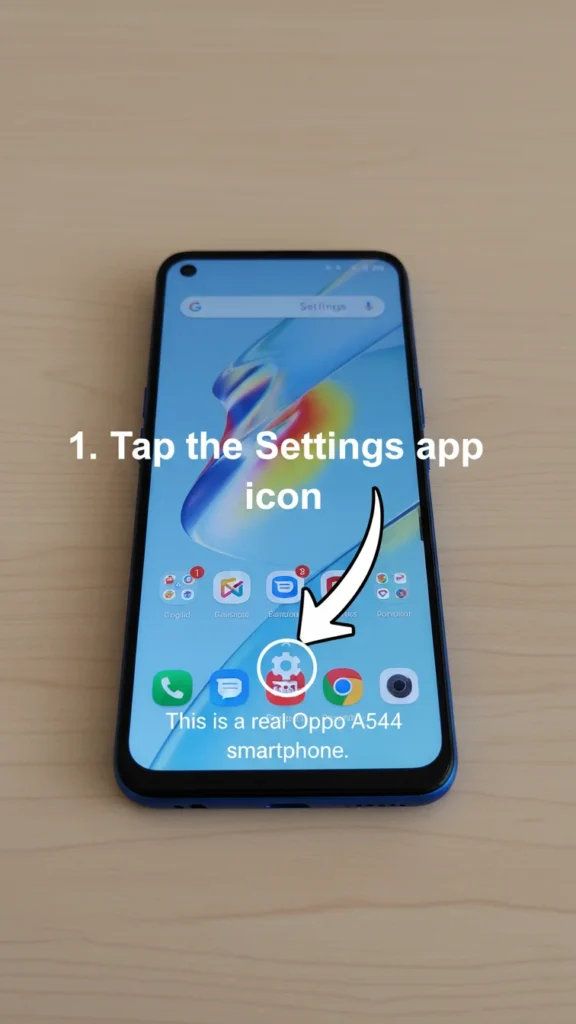
Open the Settings app.
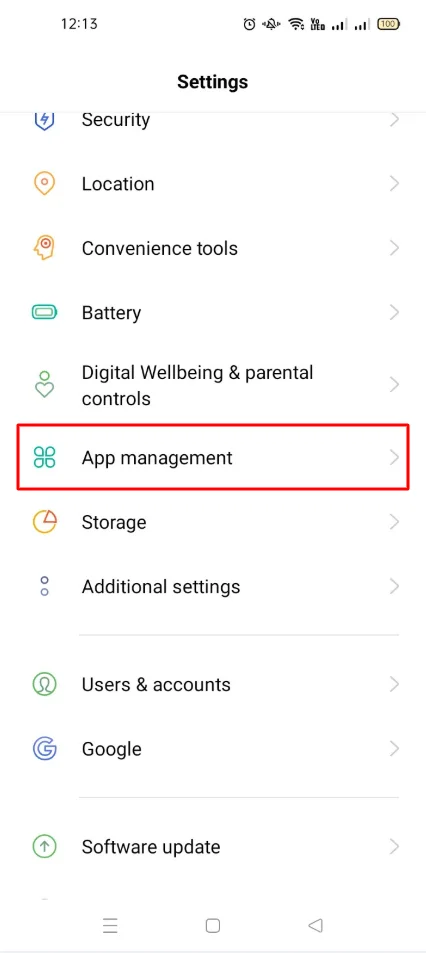
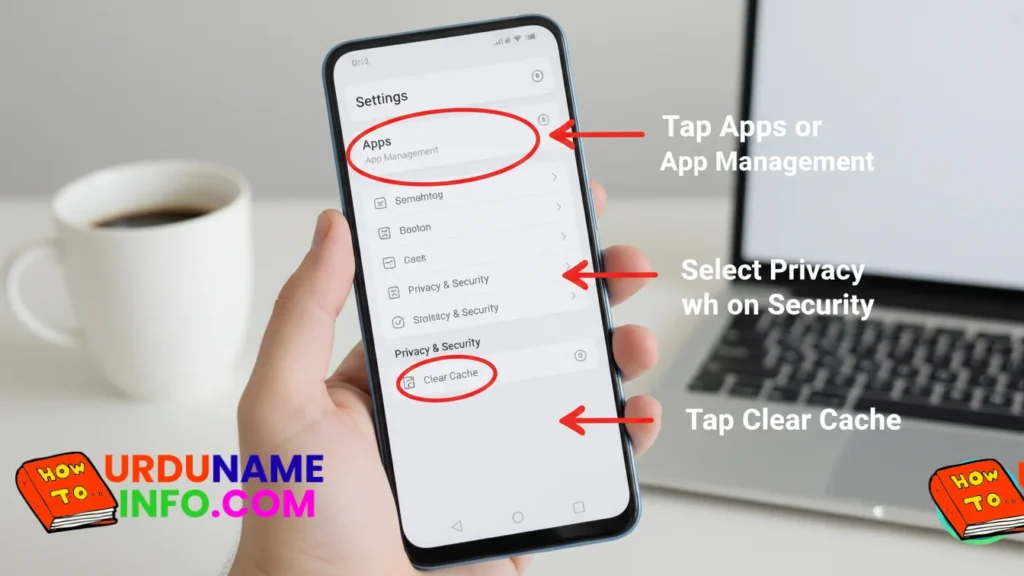
Tap Apps or App Management.
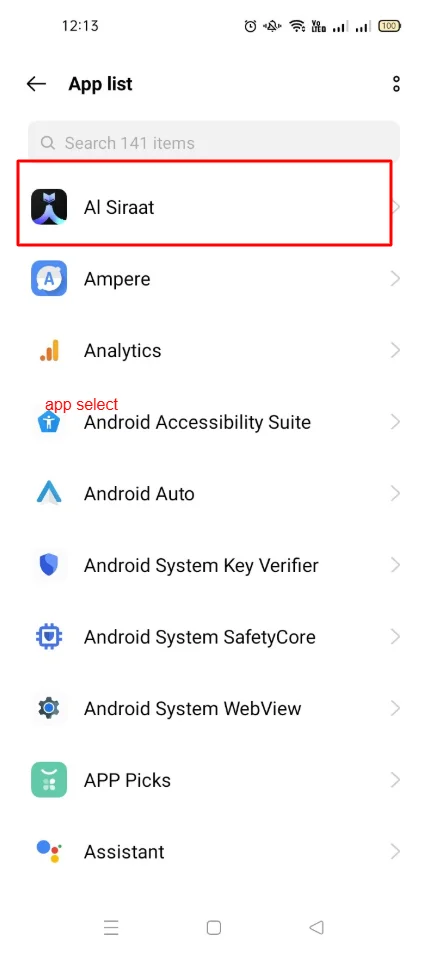
Select the app you want to clean.
Tap on Storage Usage.
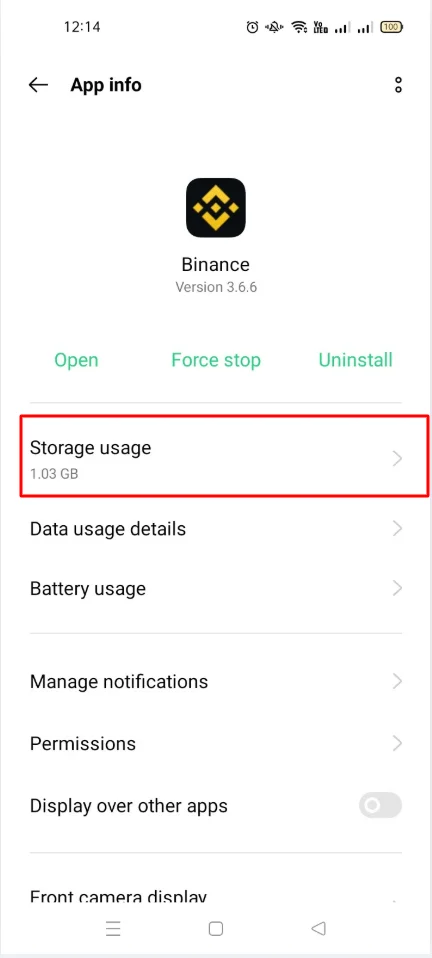
Finally, tap Clear Cache.
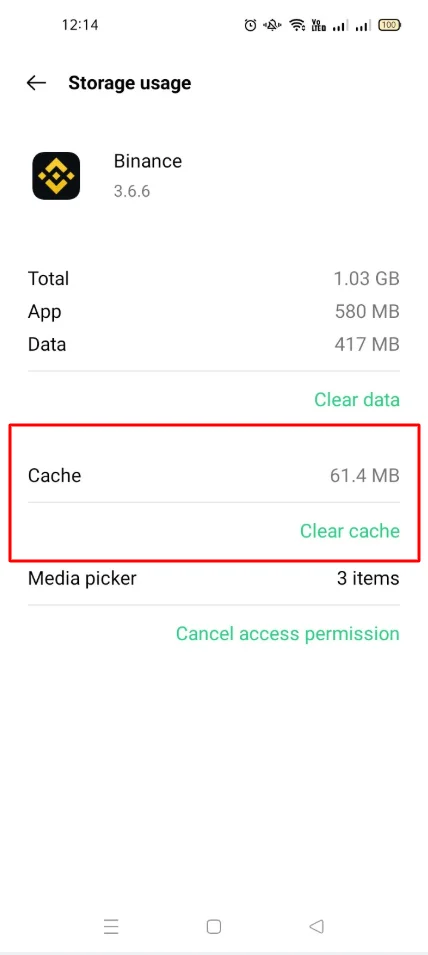
Remember one thing when clearing App Cache: the data stored inside your app or website does not go anywhere.
Read More: How to Change Navigation Buttons to Gesture Mode on OPPO A54
How to Clear System Cache on OPPO A54
Clearing the system cache can help if your phone starts lagging, animations become slow, or settings take longer than usual to open.
Steps to Clear System Cache via Recovery Mode:
Follow all the steps below.
- Turn off your OPPO A54 completely.
- Press and hold Volume Down + Power Button together.
- The recovery mode screen will appear.
- Select Wipe Cache Partition or Wipe Cache.
- Restart the phone once the process is complete.
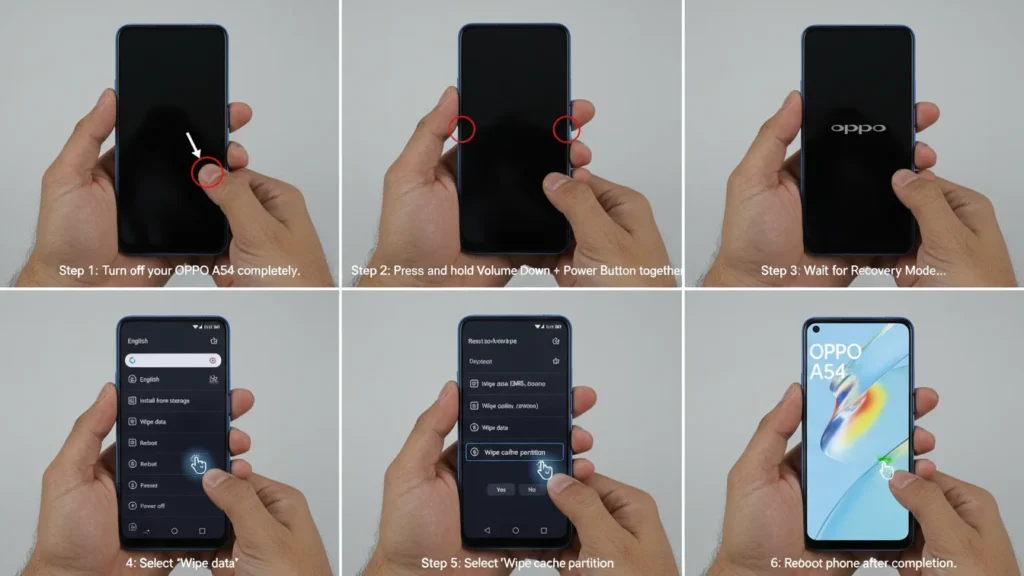
This action won’t delete your apps, files, or photos it only removes temporary system data.
How to Clear Browser Cache on OPPO A54
If your favorite websites are opening slowly or your browser is also opening slowly, then follow the steps below and clear your browser cache.
Clear Cache in Chrome Browser:
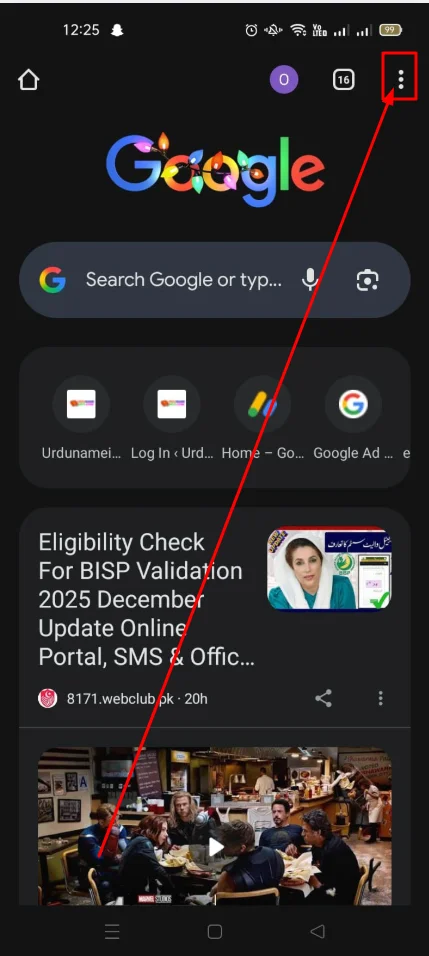
Open Chrome.
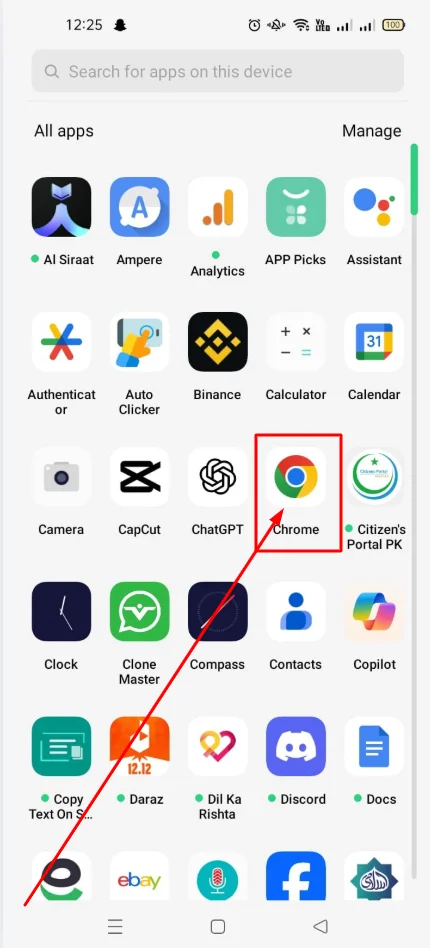
Tap the three dots in the top-right corner.
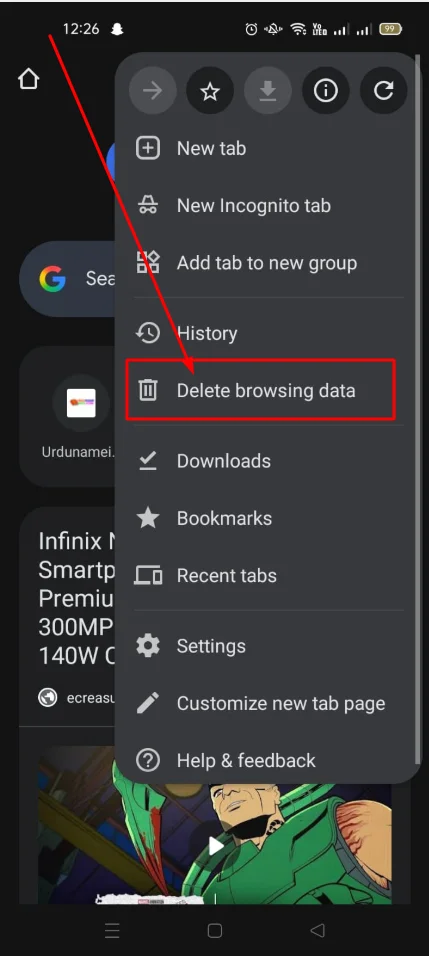
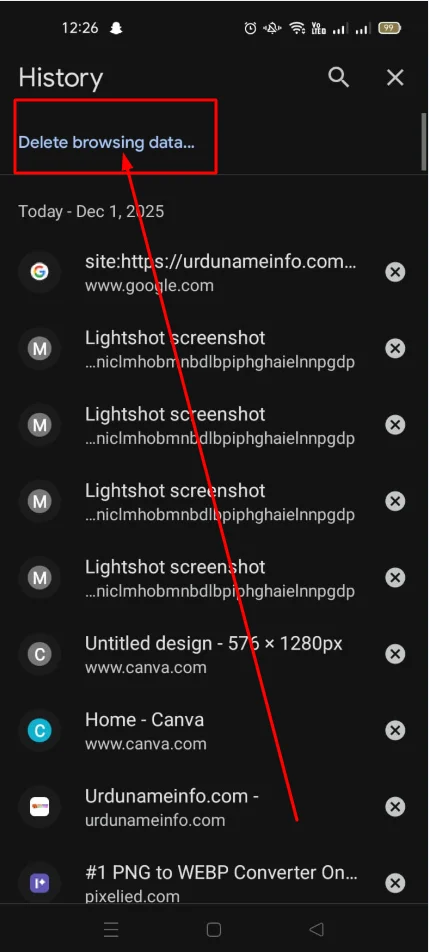
Go to History → Clear browsing data.
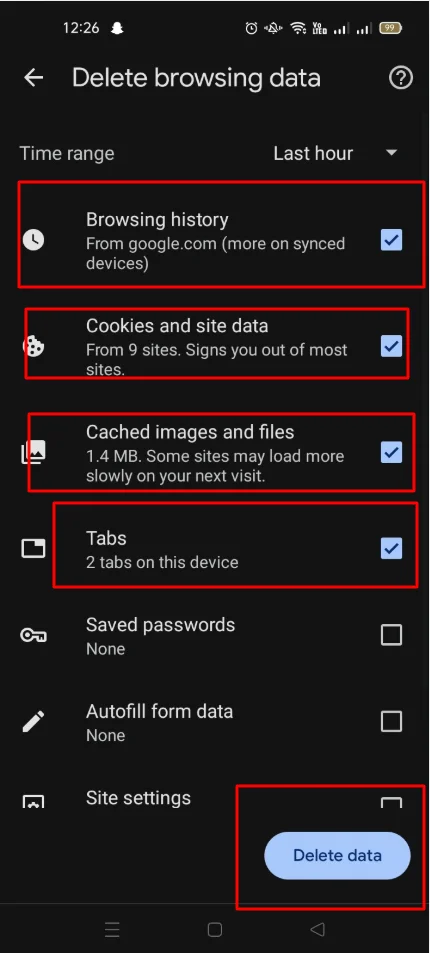
Select Cached images and files.
Tap Clear data.
Clear Cache in OPPO Default Browser:
- Open the default browser.
- Go to Settings.
- Select Privacy & Security.
- Tap Clear Cache.
Benefits of Clearing Cache on OPPO A54
Clearing the cache can significantly enhance your device’s performance in several ways. It helps apps run faster, frees up valuable storage space, reduces overheating, and ensures a smoother browsing experience. This simple yet powerful step is one of the most effective ways to maintain your phone’s speed and efficiency.
When Should You Clear Cache?
Clearing the cache doesn’t need to be a daily task. You should do it only when necessary, such as when your phone starts lagging, an app keeps crashing, or your storage seems unusually full. These are clear signs that temporary data has accumulated and needs to be removed.
Final Tips for a Faster OPPO A54
Just a few simple habits can help keep your phone running smoothly and efficiently:
- Clear heavy app caches (like WhatsApp, Facebook) once a week
- Restart your phone every few days
- Keep system software updated
These simple steps can make a big difference in your phone’s overall performance and user experience.
Conclusion
Clearing cache is a safe and effective way to speed up your OPPO A54 and free up extra space. Whether it’s app cache, system cache, or browser cache, removing temporary files helps your device run smoother. Whatever we told you people, we have done all this on our mobile phones, we have got the results, then we have told you people. Try clearing the cache once, and you will notice the difference immediately.
Author

netpub60@gmail.com
Related Posts
How to Check Laptop RAM Type in Windows (DDR3, DDR4, DDR5)
If you are planning to upgrade your laptop’s memory, the first thing you need to know is your RAM type. Buying the...
Read out all
How to Fix Laptop Screen Flickering in Windows
Laptop screen flickering is a common issue in Windows 10 and Windows 11. The screen may blink, flash, or refresh continuously, making...
Read out all
How to Check Internet Speed on Laptop Without App
If your internet feels slow while browsing, streaming, or downloading files, the first thing you should do is check your internet speed....
Read out all
Common Laptop Mistakes That Reduce Performance
Many people think a slow laptop means old hardware or the need for a new device. In reality, laptops often slow down...
Read out all
How to Fix USB Device Not Recognized Error
Seeing the message “USB Device Not Recognized” can be annoying, especially when you urgently need to access a flash drive, keyboard, mouse,...
Read out all
Difference Between SSD and HDD for Beginners
If you are new to computers, terms like SSD and HDD can sound confusing. Many people hear that SSD is “faster” and...
Read out all