
Oppo a54 mobile or any other mobile all have a lot of battery life problem especially when you are in college or university or you are traveling somewhere etc. So don’t worry, in this article we will tell you how you can increase the battery life of your mobile and also give you some tips that will increase the life of your mobile. Therefore, you must read this article at the end so that you get full information
Why Battery Drains Fast on OPPO A54
First of all, before increasing the life of the mobile battery, we will understand why the mobile battery runs out quickly. Below is a step-by-step guide on how it runs out quickly.
- Background Apps Running: Many apps continue to run in the background, consuming battery without you even noticing.
- High Screen Brightness: The brighter your screen, the more battery it uses.
- Poor Network Signal: Searching for a weak network drains your battery fast.
- Outdated Software: Old software can reduce battery efficiency and slow down performance.
There are some things that cause your mobile phone battery to drain quickly
Tips to Improve Battery Life on OPPO A54
Here are the most effective and easy ways to save battery on your OPPO A54.
1. Reduce Screen Brightness and Screen Timeout
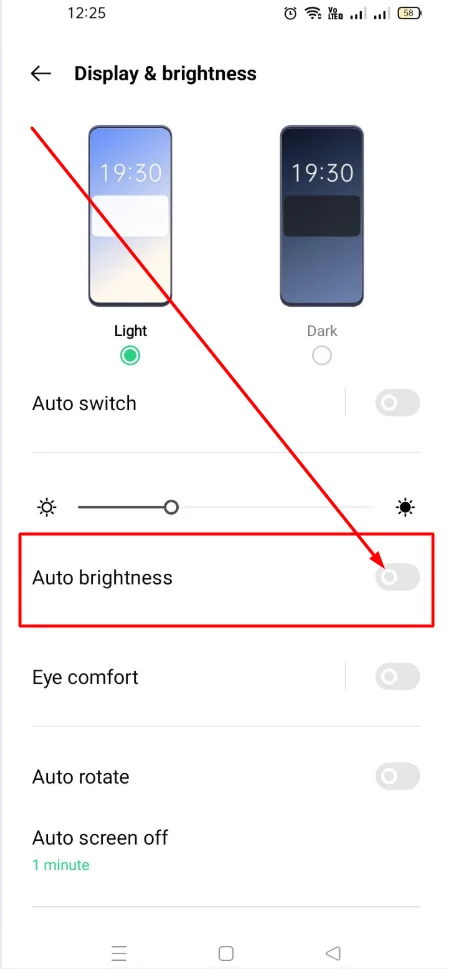
It is the screen of your mobile phone that drains the battery the most. Follow these steps:
Open Settings and select Display & Brightness.
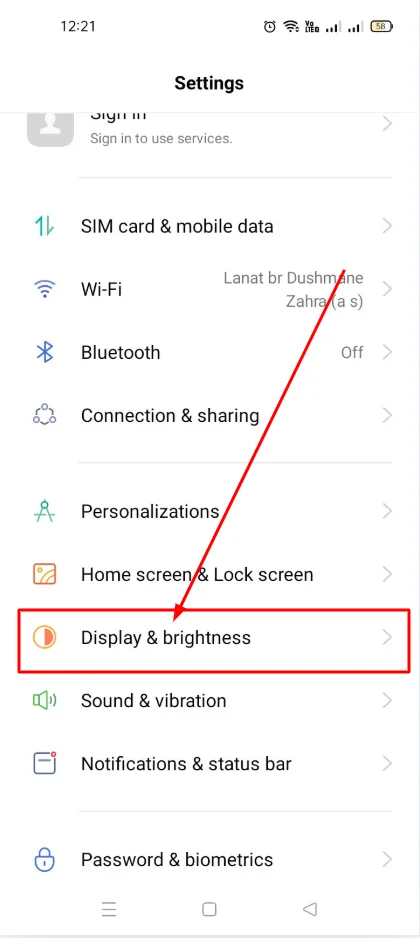
Reduce the brightness or turn on Auto-Brightness.
Set the screen timeout to 30 seconds or 1 minute.
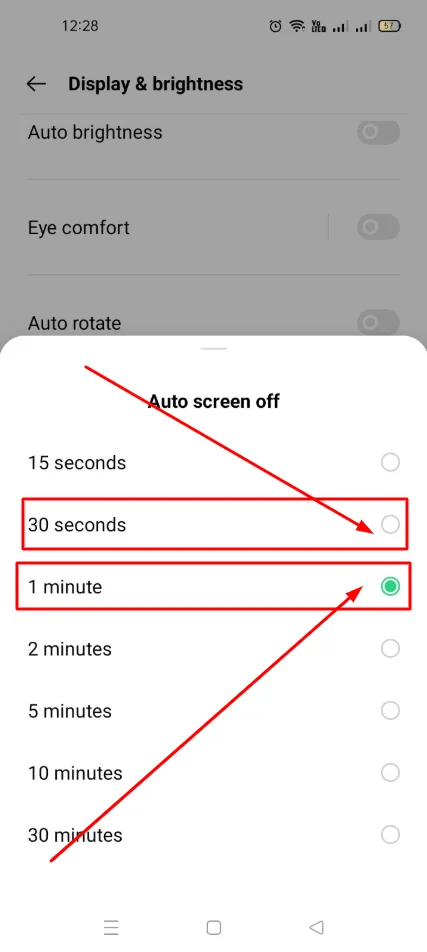
This small change can save a lot of battery on your mobile phone
2. Close Unnecessary Background Apps
Background apps drain battery even when you’re not using them.
Press the Recent Apps button.
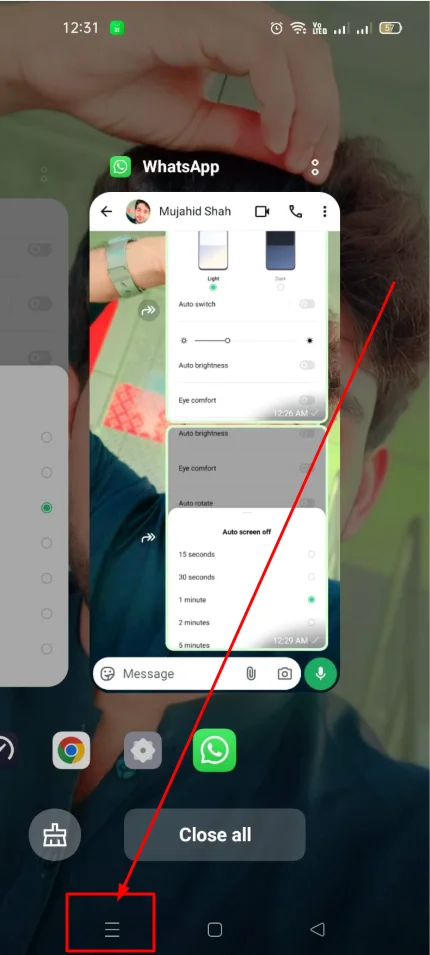
Swipe away the apps you don’t need.
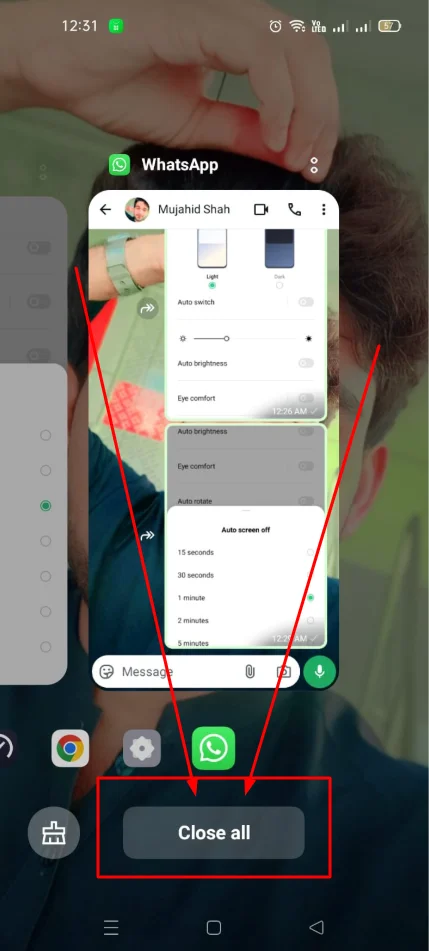
For better optimization, go to Settings → Battery → App Battery Management and restrict apps that drain too much battery.
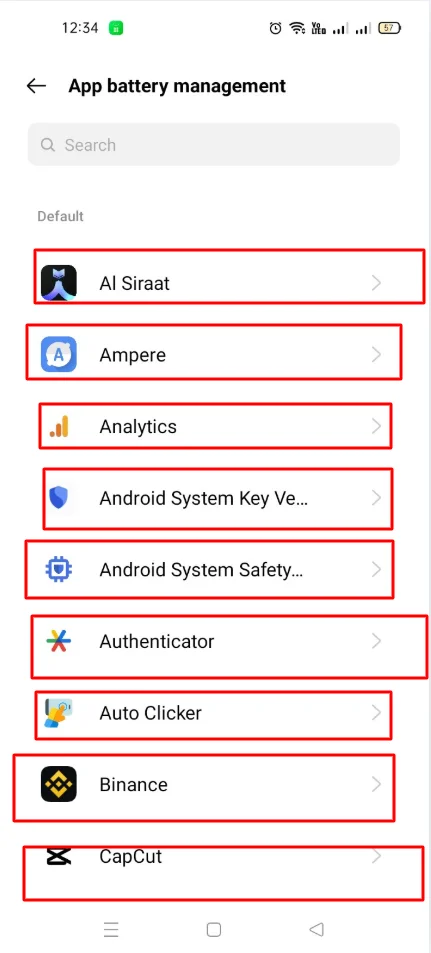
In this way you can also save some battery of your mobile phone
3. Enable Battery Saver Mode
OPPO A54 has a built-in Battery Saver feature that helps save power.
Open Settings → Battery → Battery Saver.
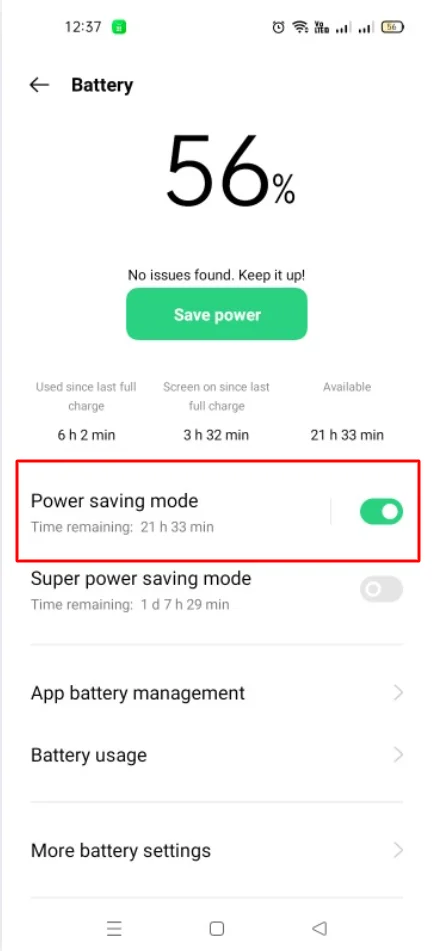
Enable it to automatically reduce battery usage when your battery is low.
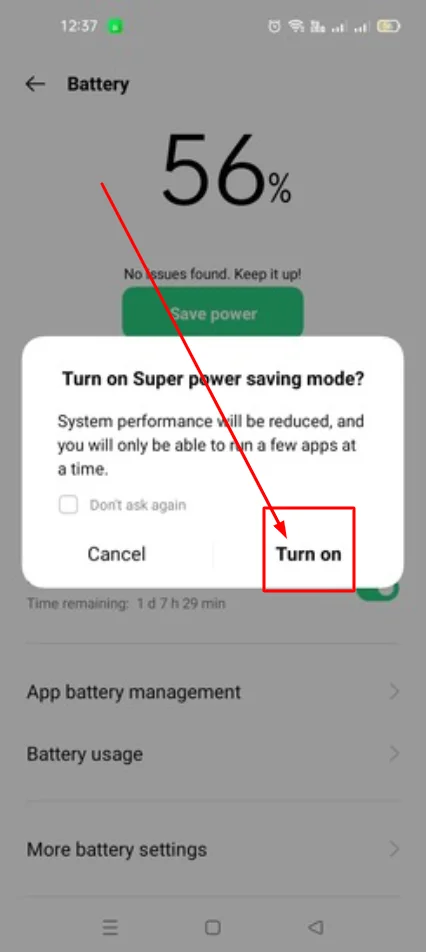
Battery Saver mode limits background activity and reduces power consumption, helping your phone last longer.
4. Limit App Notifications
Each notification wakes your phone and uses battery.
Open Settings → Notifications.
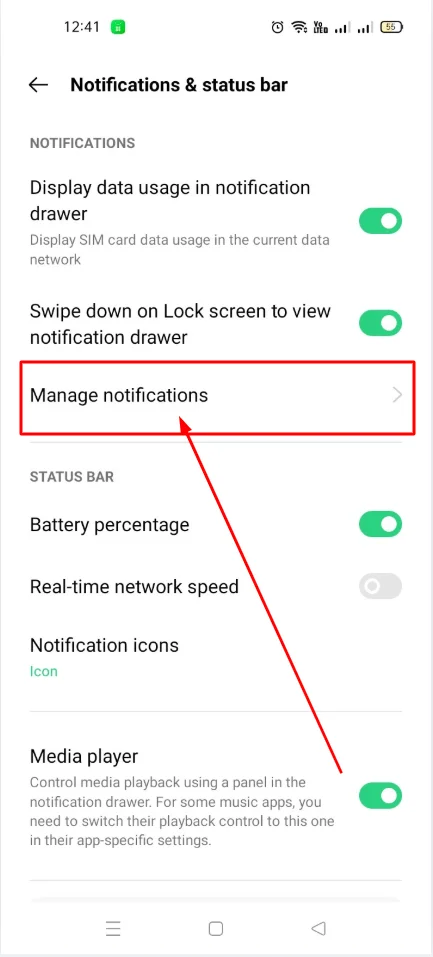
Turn off notifications for apps that are not important.
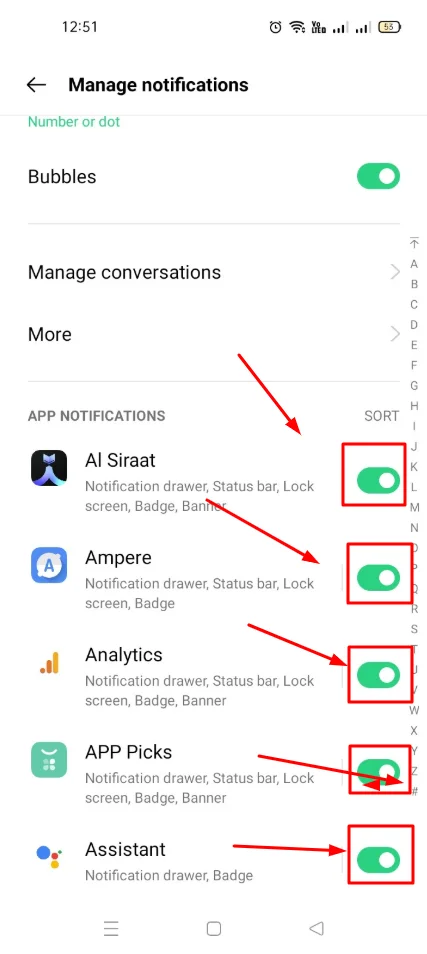
Fewer notifications mean less battery drain.
5. Turn Off Unnecessary Connectivity Features
Wi-Fi, Bluetooth, and GPS use battery even when you’re not actively using them.
Whenever possible, turn them off from the Quick Settings panel.
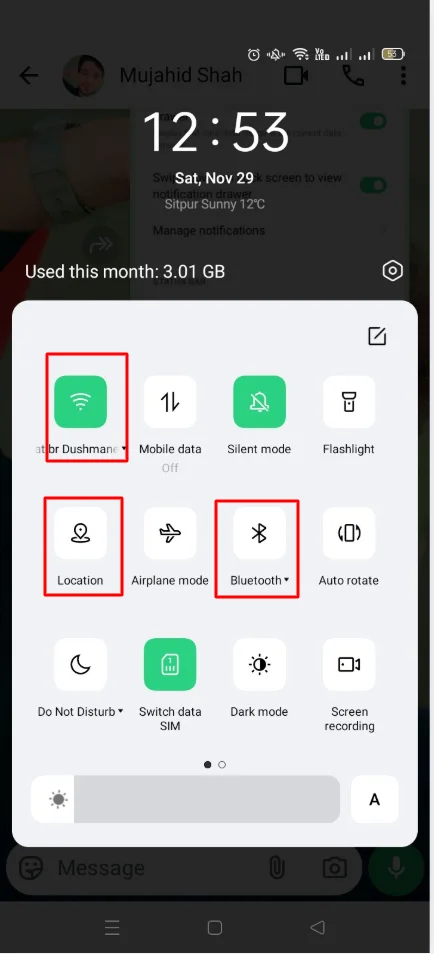
This is a small step but can save battery over time.
6. Update Your Software Regularly
Keeping your phone’s software up to date can boost battery life and overall performance.
Go to Settings → Software Update.
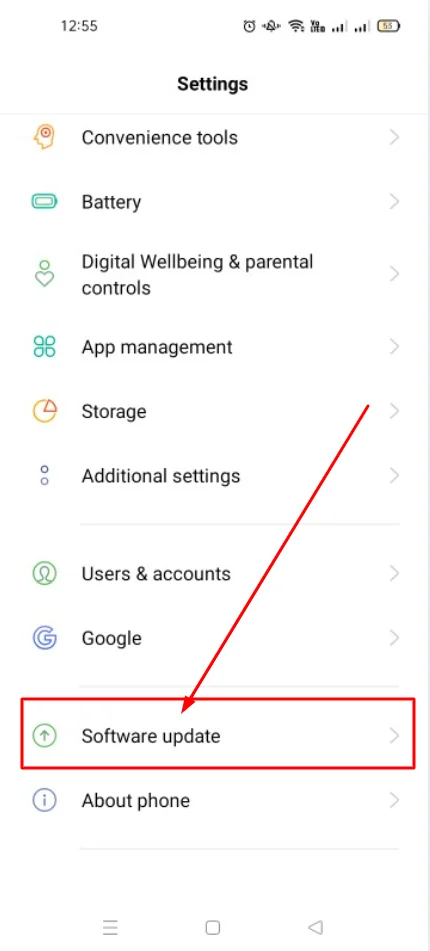
Install updates as soon as they are available.
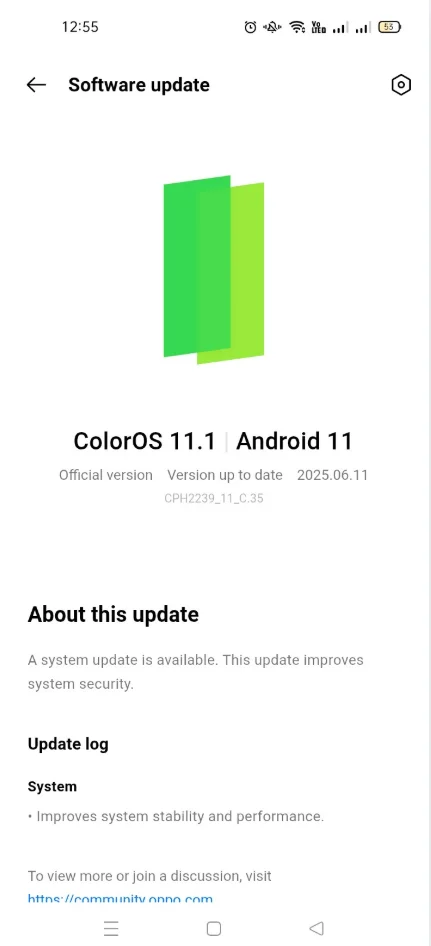
Software updates often include bug fixes and battery optimizations.
7. Use Dark Mode
If your OPPO A54 has an AMOLED screen, Dark Mode can help save battery.
Go to Settings → Display & Brightness → Dark Mode.
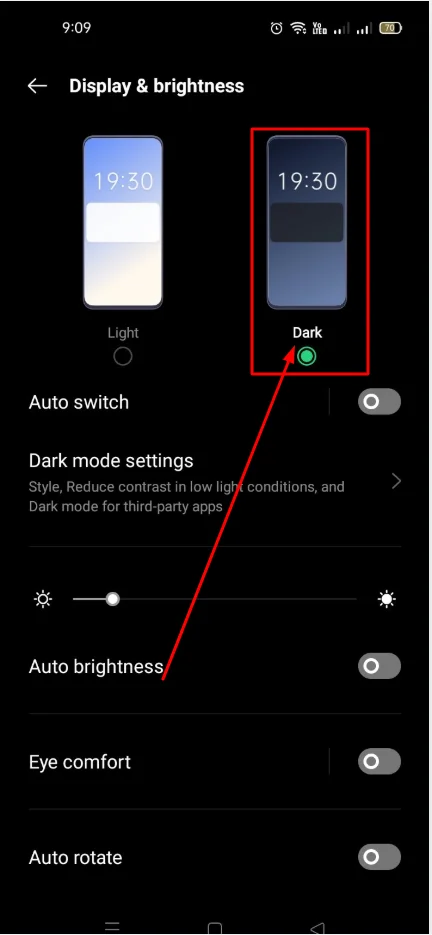
Dark colors use less power on AMOLED screens, which can extend battery life.
Read More: How to Enable Dark Mode on OPPO A54 (Simple Guide)
8. Avoid Overcharging and Extreme Temperatures
- Avoid charging your phone overnight every day.
- Do not use your phone in extreme heat or cold, as it can harm battery health.
Advanced Tips (Optional)
For advanced users:
Enable Developer Options → Limit Background Processes to restrict apps from running in the background.
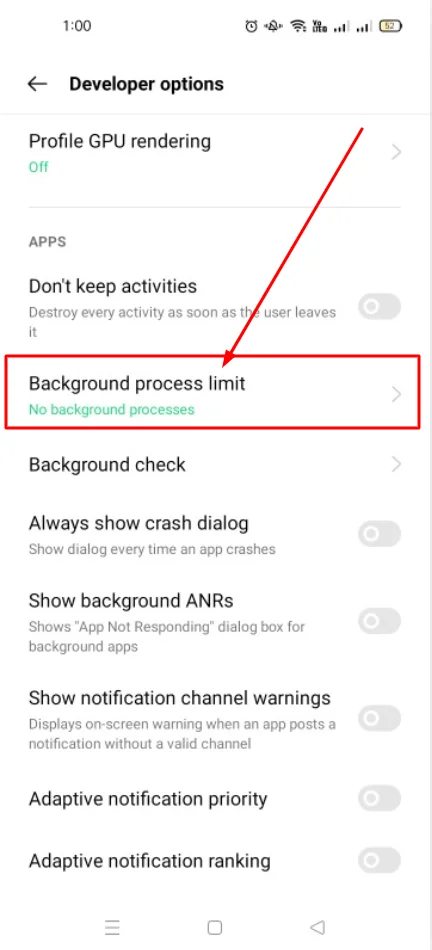
Occasionally calibrate your battery by fully charging it to 100% and then letting it drain completely.
Read More: How to Enable Developer Options in OPPO A54
Common Myths About Battery Life
There are many misconceptions about battery usage. Here’s the truth:
- Myth: Charging overnight damages the battery.
Fact: Modern phones automatically stop charging when the battery is full. - Myth: Closing all apps saves battery.
Fact: Android manages apps efficiently; closing apps too often may not help. - Myth: Dark Mode saves battery on all phones.
Fact: Dark Mode saves battery mostly on AMOLED displays.
Conclusion
In today’s article, I have told you in detail how you can improve the battery life of your mobile phone. Improving battery life on your OPPO A54 is simple if you follow the tips above. Reduce screen brightness, close background apps, enable battery saver, limit notifications, and keep your software updated. These small changes can make a big difference and help your phone last longer every day.
Author

netpub60@gmail.com
Related Posts

How to Check Laptop RAM Type in Windows (DDR3, DDR4, DDR5)
If you are planning to upgrade your laptop’s memory, the first thing you need to know is your RAM type. Buying the...
Read out all
How to Fix Laptop Screen Flickering in Windows
Laptop screen flickering is a common issue in Windows 10 and Windows 11. The screen may blink, flash, or refresh continuously, making...
Read out all
How to Check Internet Speed on Laptop Without App
If your internet feels slow while browsing, streaming, or downloading files, the first thing you should do is check your internet speed....
Read out all
Common Laptop Mistakes That Reduce Performance
Many people think a slow laptop means old hardware or the need for a new device. In reality, laptops often slow down...
Read out all
How to Fix USB Device Not Recognized Error
Seeing the message “USB Device Not Recognized” can be annoying, especially when you urgently need to access a flash drive, keyboard, mouse,...
Read out all
Difference Between SSD and HDD for Beginners
If you are new to computers, terms like SSD and HDD can sound confusing. Many people hear that SSD is “faster” and...
Read out all